Payment Terms
Payment Terms define when a customer must pay an invoice or when TBPC must pay a vendor bill. They are used on customer invoices, vendor bills, sales orders, and purchase orders to automatically calculate due dates.
Navigation
Configuration > Invoicing > Payment Terms
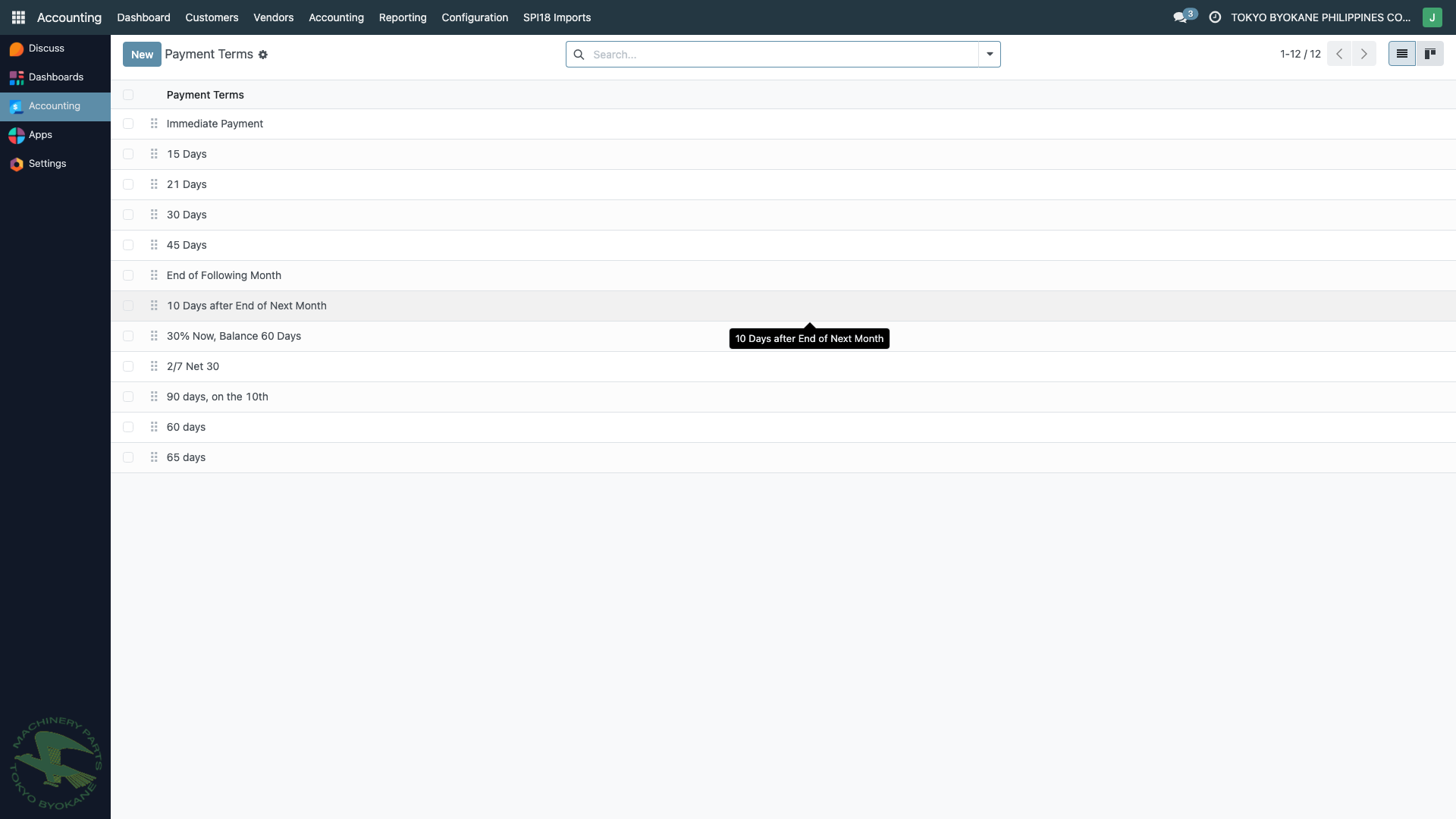
TBPC uses a small set of standard payment terms:
| Payment Term | Due After |
|---|---|
| Immediate Payment | 0 days (same day) |
| 15 Days | 15 days after invoice date |
| 21 Days | 21 days after invoice date |
| 30 Days | 30 days after invoice date |
| 45 Days | 45 days after invoice date |
Structure of a Payment Term
A payment term consists of one or more installment lines. Each line defines:
- What percentage of the total is due
- After how many days (or on what day)
- Using which account (advanced)
For simple terms like "30 Days", there is a single line: 100% due 30 days after invoice date.
For complex terms like "50% down, 50% on delivery", you'd have two lines: 50% immediate and 50% after X days.
Creating a Payment Term
- Navigate to Configuration > Invoicing > Payment Terms
- Click New
- Enter the Payment Terms name (e.g., "30 Days")
- In the Due Terms tab, click Add a line:
- Due: Enter the percentage (e.g.,
100) and select "Percent" - After: Enter the number of days and the basis (After Invoice Date, End of Month, End of Following Month, etc.)
- Due: Enter the percentage (e.g.,
- (Optional) Configure an Early Discount if you offer discounts for early payment
- Click Save
Example: 30 Days Payment Term
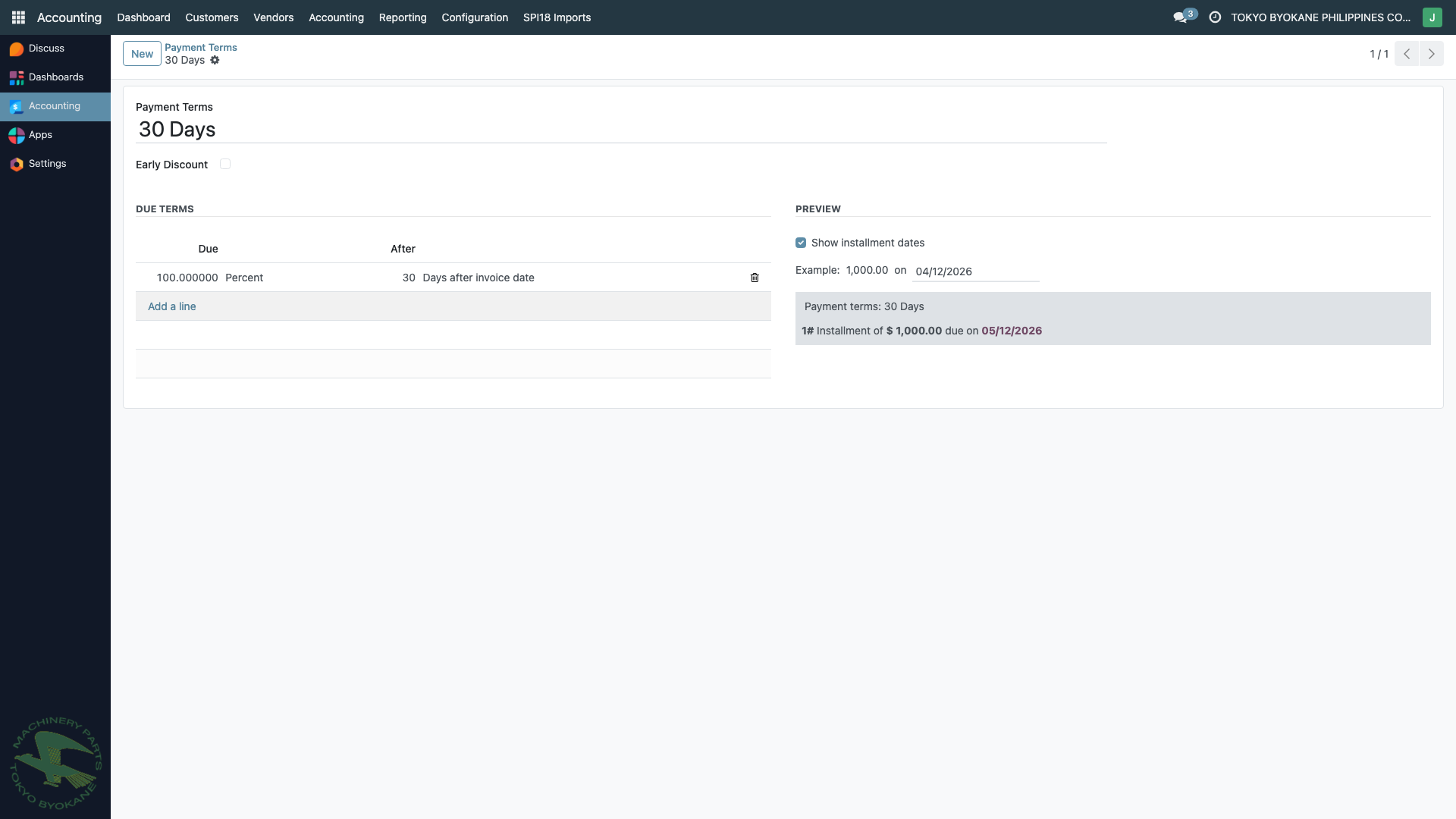
The form shows:
- Payment Terms name: 30 Days
- Due Terms:
- 100% Percent, 30 Days after invoice date
- Preview:
- Example: 1,000.00 USD invoice dated 04/12/2026
- Installment of $1,000.00 due on 05/12/2026
Early Discount
Payment terms support Early Discount — a discount offered to customers who pay before the due date.
Example: "2/10 Net 30" means 2% discount if paid within 10 days, otherwise full amount due in 30 days.
Configuration:
- Check Early Discount
- Enter the discount percentage
- Enter the number of days within which the discount applies
- Select whether the discount is computed on the tax-excluded or tax-included base
:::info TBPC Usage TBPC typically does not use Early Discount — most invoices follow simple "X Days" payment terms. If you need to offer a discount, consider whether it should be a payment term early discount or a Credit Note after the invoice. :::
Using Payment Terms on Invoices
When creating a customer invoice or vendor bill:
- Open the invoice/bill form
- Select a Payment Term from the dropdown
- Odoo automatically computes the Due Date based on the term
Example: Invoice dated 04/12/2026 with "30 Days" payment term → Due date = 05/12/2026
Deleting a Payment Term
:::warning Don't Delete Used Payment Terms If a payment term is referenced on existing invoices, you cannot delete it. Instead, archive it — this hides it from dropdowns for new invoices while preserving history.
To archive: Open the payment term form → click the gear icon (or Actions menu) → Archive. :::
Best Practices
- Keep it simple — standard terms like 15, 30, 45 days cover most scenarios
- Align with vendor contracts — use the same term name your vendors use for consistency
- Don't create one-off terms — for special cases, use a standard term and override the due date manually
- Review periodically — archive unused terms to keep the dropdown clean
- Match BIR reporting — payment terms don't affect BIR filing directly, but clear terms help with collection follow-up via Aged Receivables