Short Payment with Forex Write-off
This page covers a different scenario from the automatic exchange difference described in Forex on Collections:
- Automatic exchange difference: customer pays the full invoice amount, but on a different date or in a different currency. Odoo auto-posts the rate difference to Forex Gain/Loss.
- Short payment (this page): customer pays less than the invoice amount because of a forex conversion on their side, a remittance fee, or a rate disagreement. The shortfall must be written off manually — otherwise the invoice stays partially open.
Example
- Invoice: INV/2026/00254 to YOKOWO for $11,760.24 USD
- Payment received: $11,000.00 USD — short by $760.24
- Reason: the remitter converted at a rate unfavorable to the invoice amount (or bank fees were deducted on their side).
- Goal: close the invoice fully, book the $760.24 shortfall to the Forex Loss account.
Step-by-Step Workflow
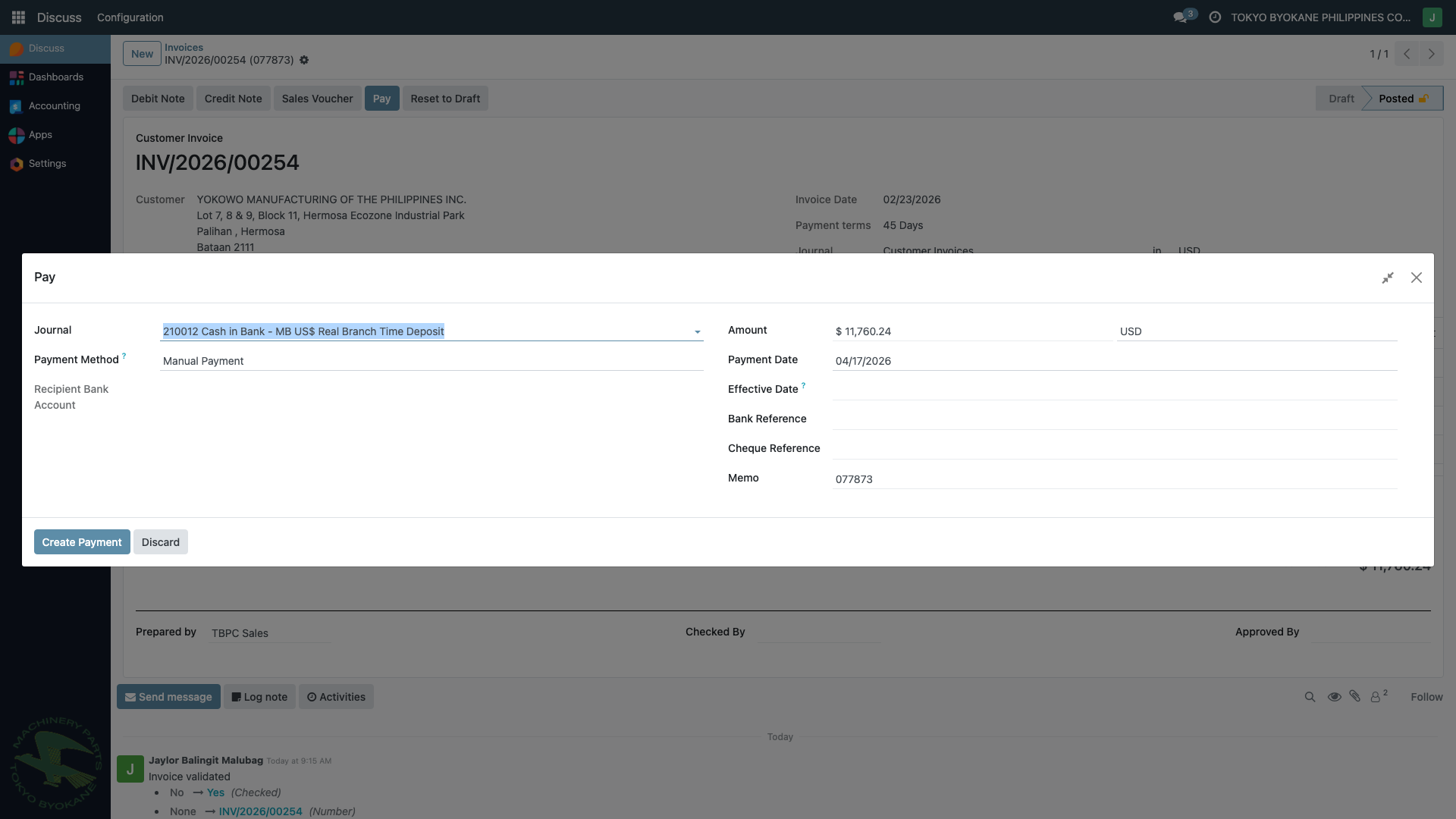
Step 1. Open the invoice and click Pay
Accounting → Customers → Invoices → open INV/2026/00254 → click Pay.
The Pay dialog opens with the Amount pre-populated at the full invoice amount:
Step 2. Enter the actual amount received
In the Pay dialog:
- Journal: the bank where the funds landed (e.g.
210012 Cash in Bank - MB US$ Real Branch) - Amount:
11,000.00(the actual amount received — not the full invoice amount) - Payment Date: the date the funds cleared
Step 3. Reveal the Payment Difference section
Once the Amount is less than the Amount Due, a Payment Difference section appears in the lower-left of the dialog with two options:
- Keep open — leaves the invoice partially paid with a residual balance (default)
- Mark as fully paid — closes the invoice and writes off the difference
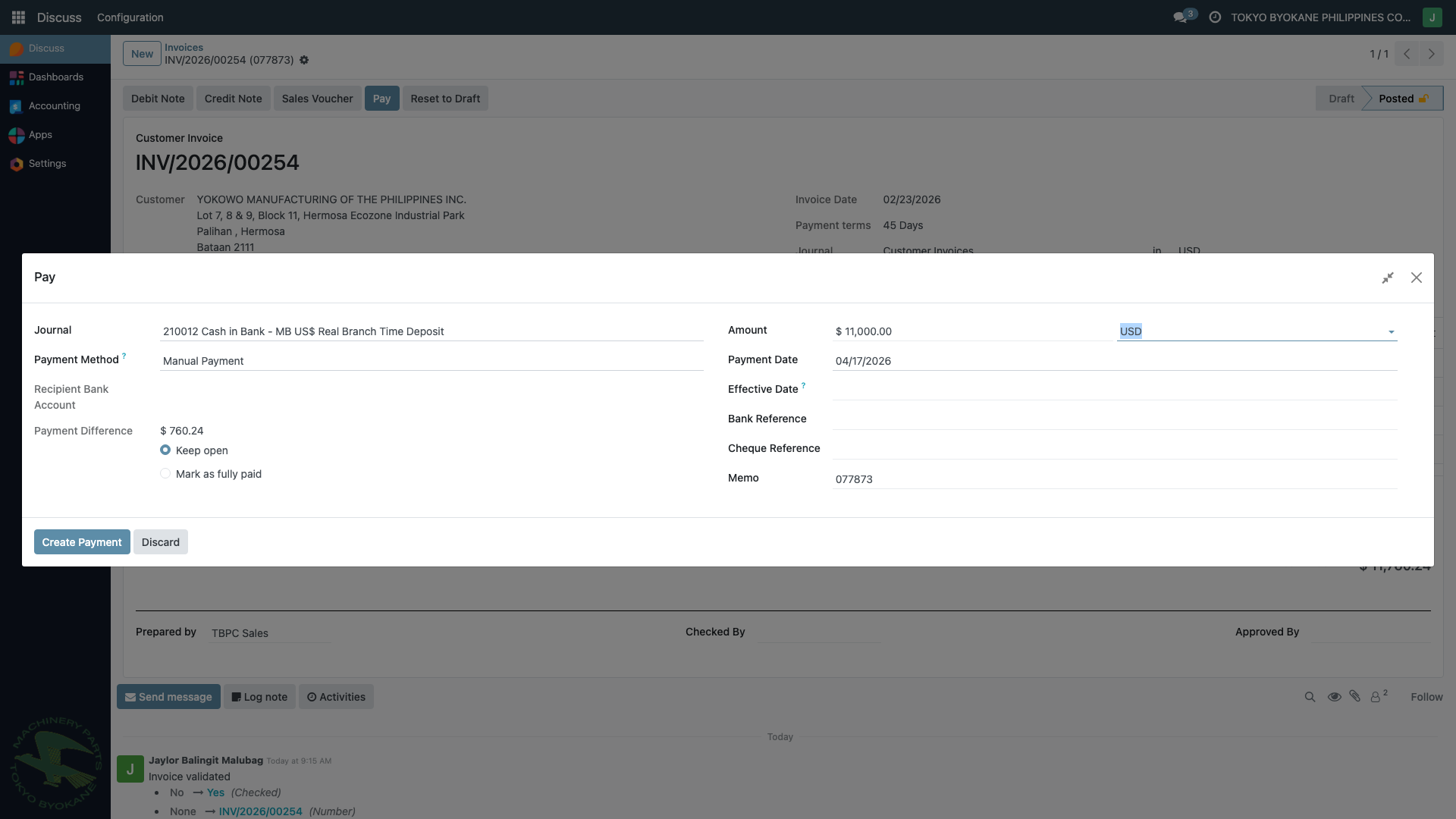
Select Mark as fully paid.
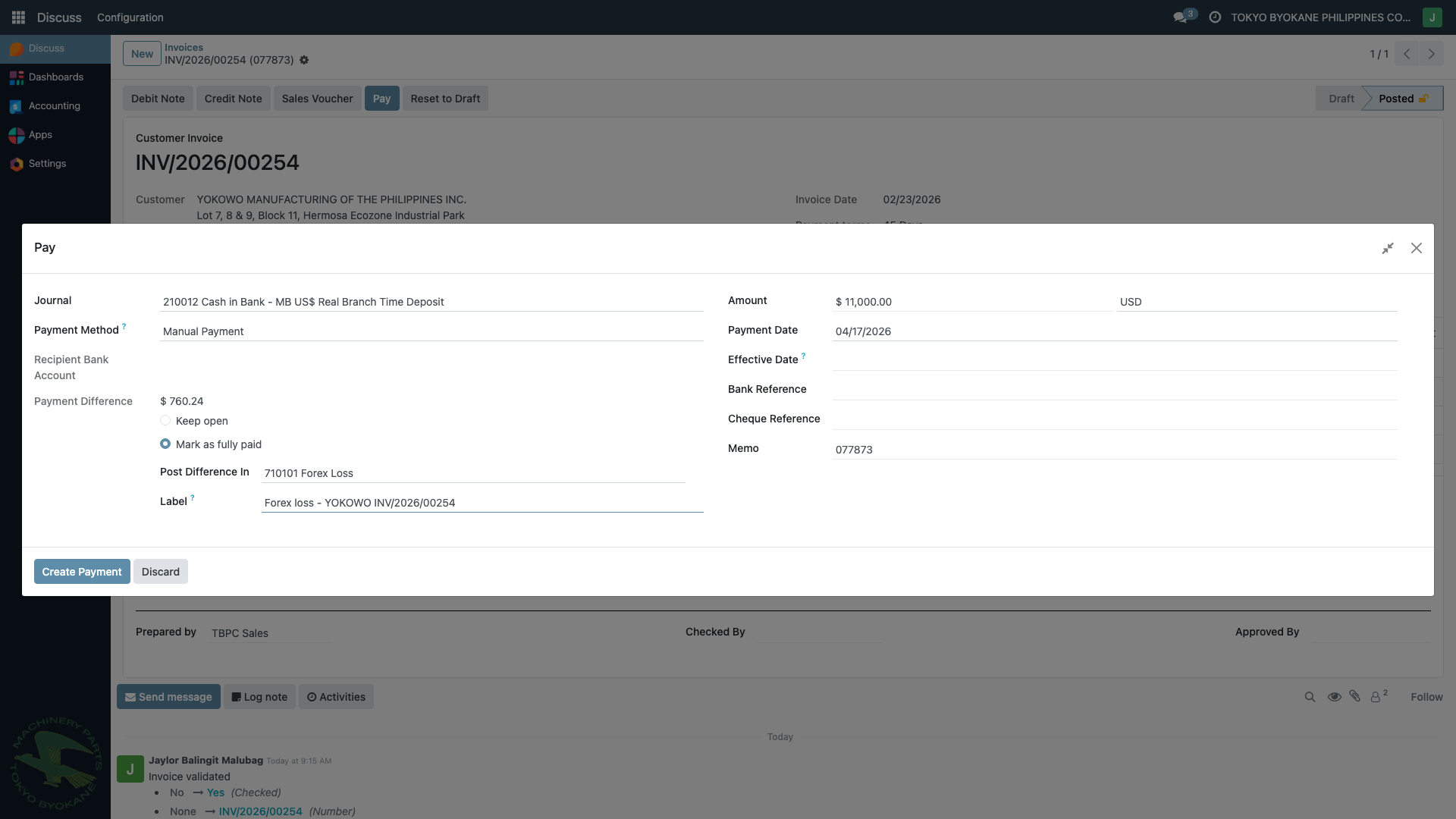
Step 4. Set the write-off account
Two fields become required:
- Post Difference In: select Forex Loss account (
710101or whatever your chart of accounts uses) - Label: a descriptive label, e.g.
Forex loss - YOKOWO INV/2026/00254
Step 5. Validate
Click Create Payment.
Odoo creates a single payment that:
- Debits the bank for $11,000.00
- Debits Forex Loss for $760.24
- Credits Accounts Receivable for the full $11,760.24
- Reconciles the full invoice — it is now marked Paid
Step 6. Verify
- Open the invoice → confirm status is Paid and the Amount Due is zero.
- Open the payment → check the Journal Items tab: you should see three lines (Bank, Forex Loss, A/R).
- Run the General Ledger on
710101 Forex Lossfor the payment date — the $760.24 entry should appear there.
Configuration Prerequisites
For the Payment Difference workflow to work, the following must be configured:
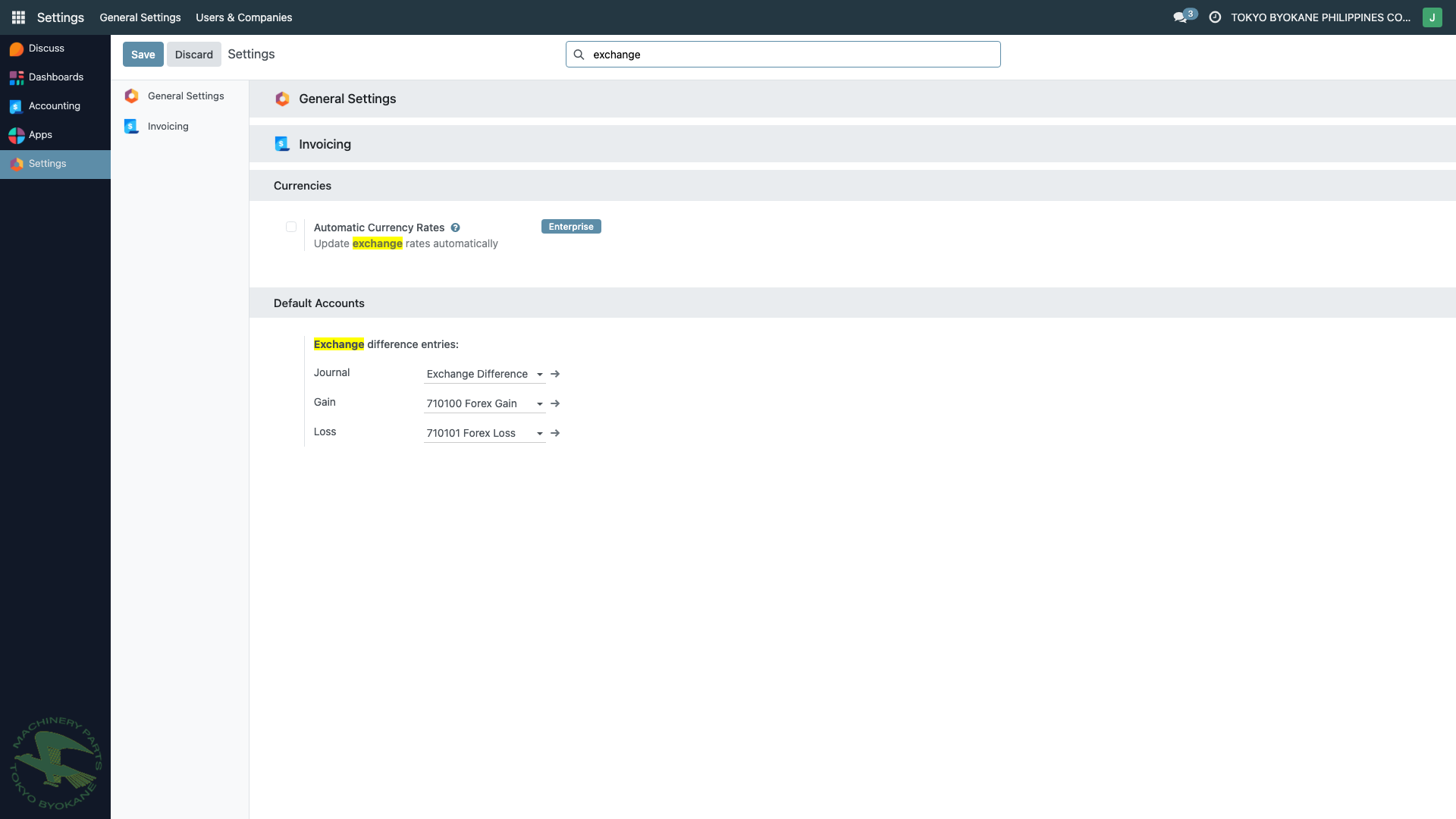
1. Exchange Gain/Loss Accounts
Accounting → Configuration → Settings → Default Accounts
- Exchange Gain Account: typically
710100 Forex Gain - Exchange Loss Account: typically
710101 Forex Loss
These defaults pre-populate the Post Difference In field for typical forex write-offs, but you can still override per payment.
2. Outstanding Receipts/Payments Accounts on Bank Journals
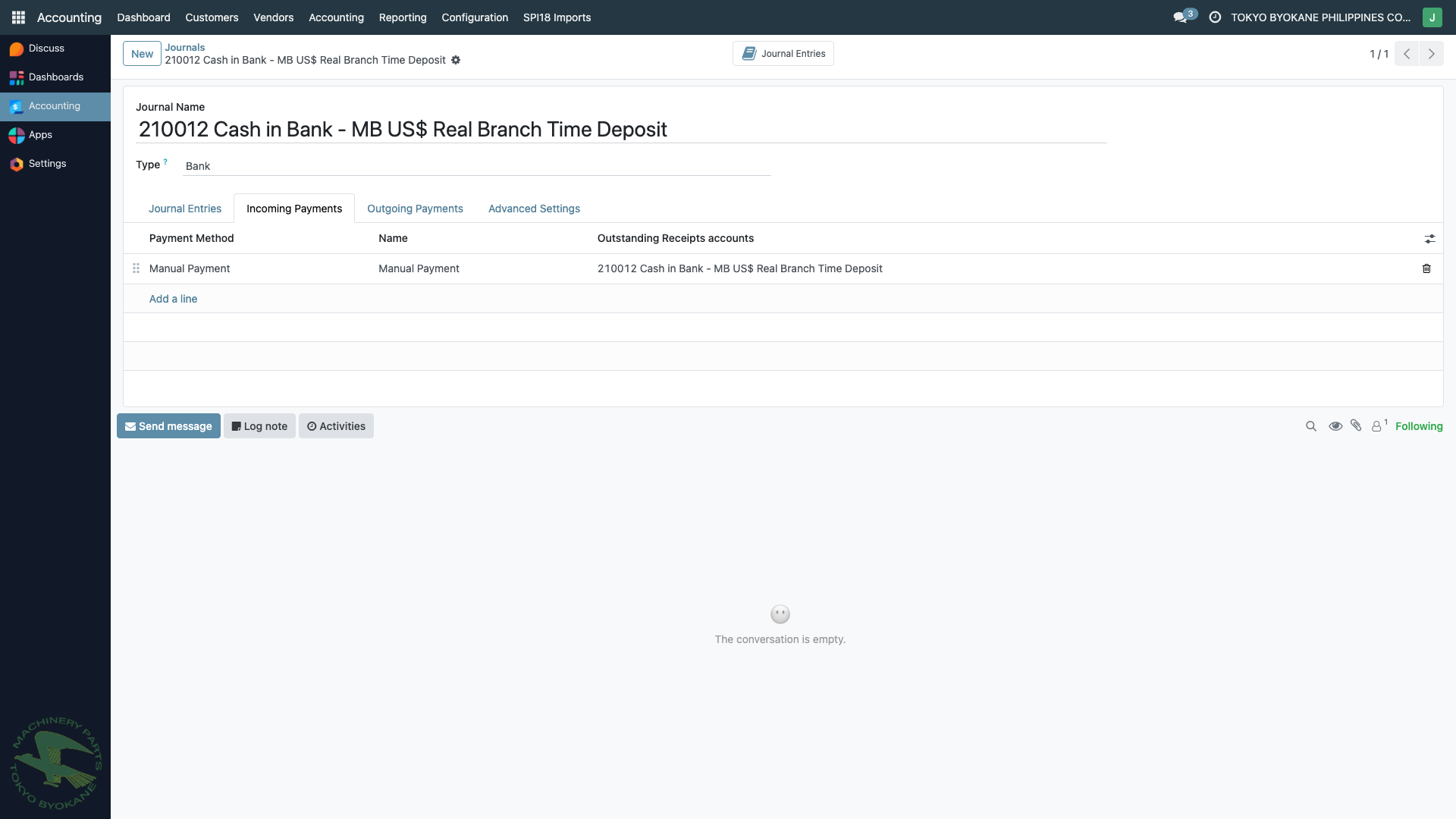
Each bank/cash journal must have an Outstanding Receipts account (for incoming payments) and Outstanding Payments account (for outgoing) set on every payment method line.
Accounting → Configuration → Journals → [select journal]
- Incoming Payments tab: each row's Outstanding Receipts accounts column must be filled in
- Outgoing Payments tab: each row's Outstanding Payments accounts column must be filled in
In TBPC's setup, these accounts are set equal to the bank's own GL account (to skip the intermediate outstanding step), but they must not be blank.
:::warning Why this matters
If payment_account_id on the payment method line is NULL, Odoo silently hides the entire Payment Difference section in the Pay dialog — including the "Mark as fully paid" option. The invoice would then have to be closed by a manual journal entry instead of the clean workflow above.
:::
Troubleshooting
The Payment Difference section does not appear
Checklist in order:
- Amount entered is less than Amount Due? The section only appears when there is a non-zero difference.
- Outstanding Receipts/Payments account is set on the journal? See Prerequisite 2 above. This is the most common cause.
- You are using the single-invoice Pay button, not batch payment? The section is hidden for multi-invoice grouped payments where the wizard cannot edit amounts.
To verify the journal config from the database side (DBA access only):
SELECT apml.id, apml.name, apm.payment_type,
       aj.code, aj.name->>'en_US' AS journal_name,
       apml.payment_account_id
FROM account_payment_method_line apml
JOIN account_journal aj ON aj.id = apml.journal_id
JOIN account_payment_method apm ON apm.id = apml.payment_method_id
WHERE aj.type IN ('bank', 'cash')
  AND apml.payment_account_id IS NULL;
Any rows returned indicate journals where "Mark as fully paid" will be hidden.
I need to split the shortfall across multiple accounts
The Pay dialog only allows a single write-off account. If the shortfall includes both a forex component and something else (e.g. a bank fee or withholding tax), use Keep open instead and then create a manual journal entry or credit note for the individual components.
The payment is for a withholding tax short, not forex
Do not use Forex Loss for withholding — use the Creditable Withholding Tax account instead, or record a BIR Form 2307 via the withholding certificate workflow. See Receiving a Customer Payment for the BIR-compliant process.
Related Pages
- Forex on Collections — automatic forex on full-amount payments at different rates
- Forex on Disbursements — the same mechanism for vendor payments
- Multi-Currency Overview — currency setup and concepts
- Receiving a Customer Payment — the standard collection workflow