Credit Notes - Price Decrease Adjustment
Use a Credit Note when a product price has decreased after an invoice was already paid. The customer overpaid and is owed the difference.
When to Use
- Product price went down after billing
- Customer sent a check for the original billed amount
- You need to give the customer a credit for the difference
Example Scenario
- Invoice INV/2025/01491: billed $261.85 to customer
- Customer sends a check for $261.85 (invoice marked as Paid)
- Product price decreases by $20.00
- You need to create a Credit Note for $20.00
Step-by-Step
Step 1: Open the Paid Invoice
Navigate to Customers > Invoices and open the target invoice.
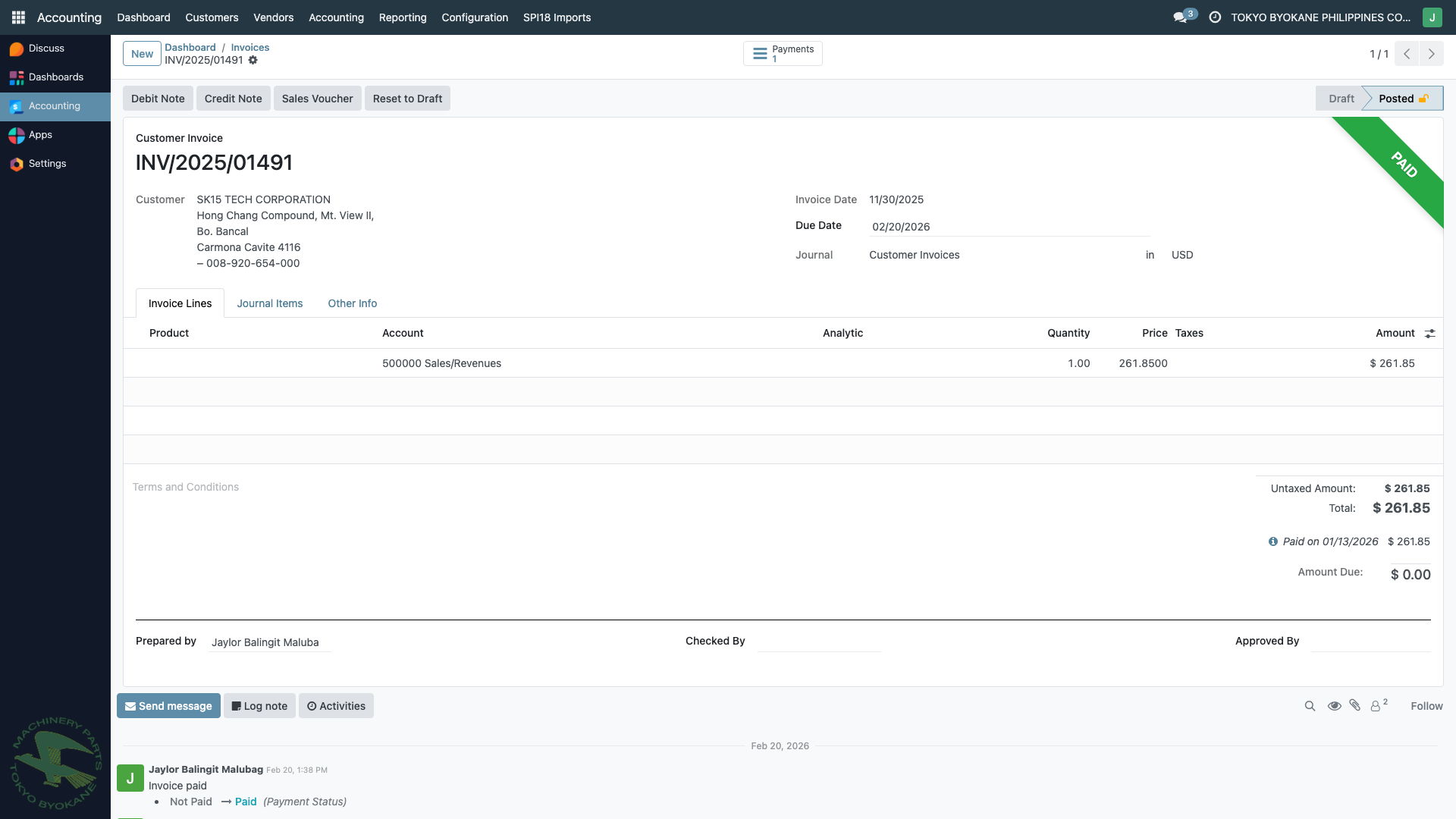
Note the Credit Note button in the action bar.
Step 2: Click "Credit Note"
Click the Credit Note button. The wizard opens:
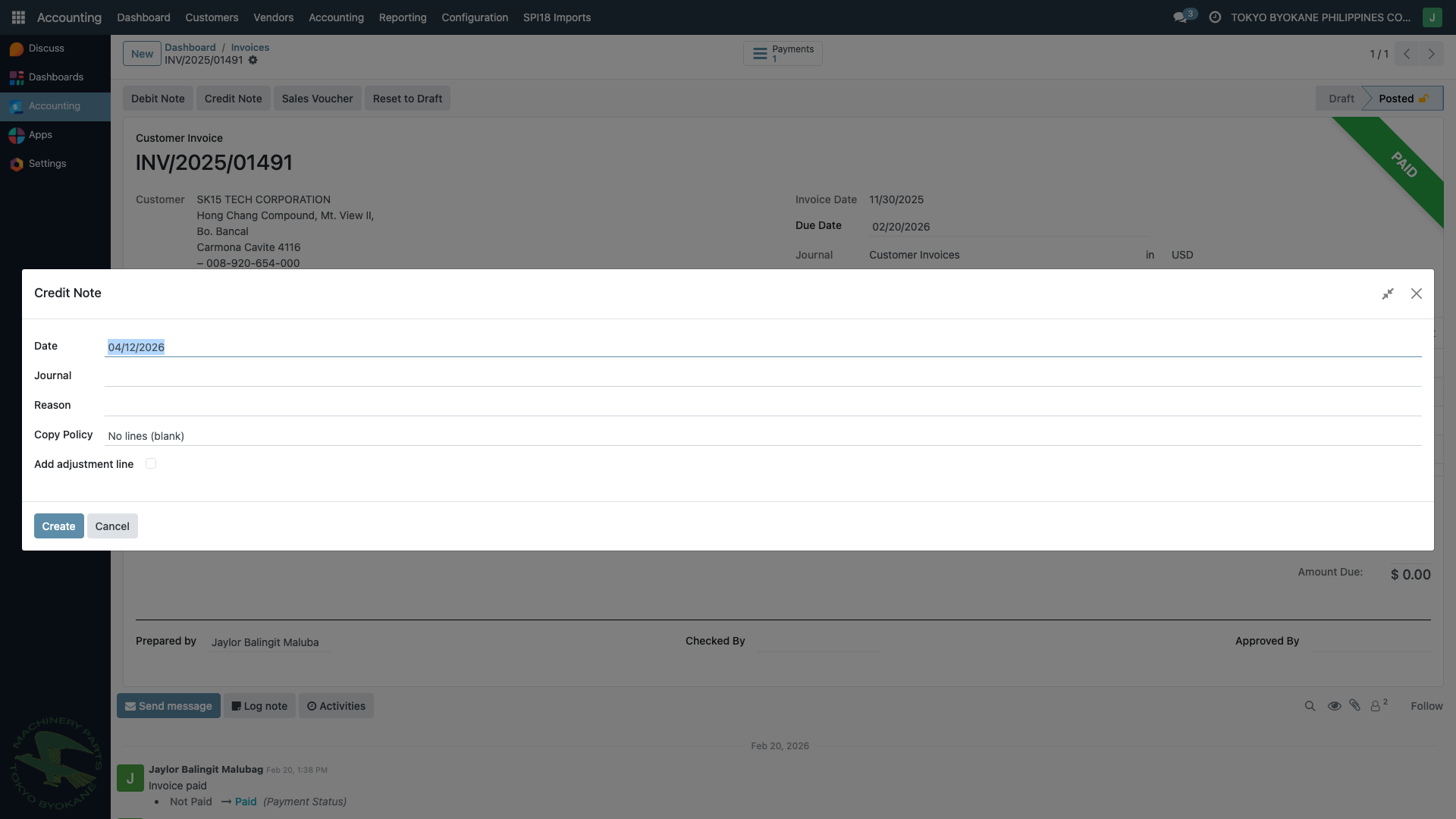
Step 3: Fill in the Wizard
| Field | What to Enter |
|---|---|
| Date | Date of the credit note (defaults to today) |
| Journal | Select "Customer Invoices" |
| Reason | Why you're creating the credit note |
| Copy Policy | Choose how to populate lines |
Step 4: Add Adjustment Line
Select "No lines (blank)", check "Add adjustment line", and fill in:
- Adjustment Label: Description (e.g., "Price decrease - Product A")
- Adjustment Amount: The price difference (e.g., $20.00)
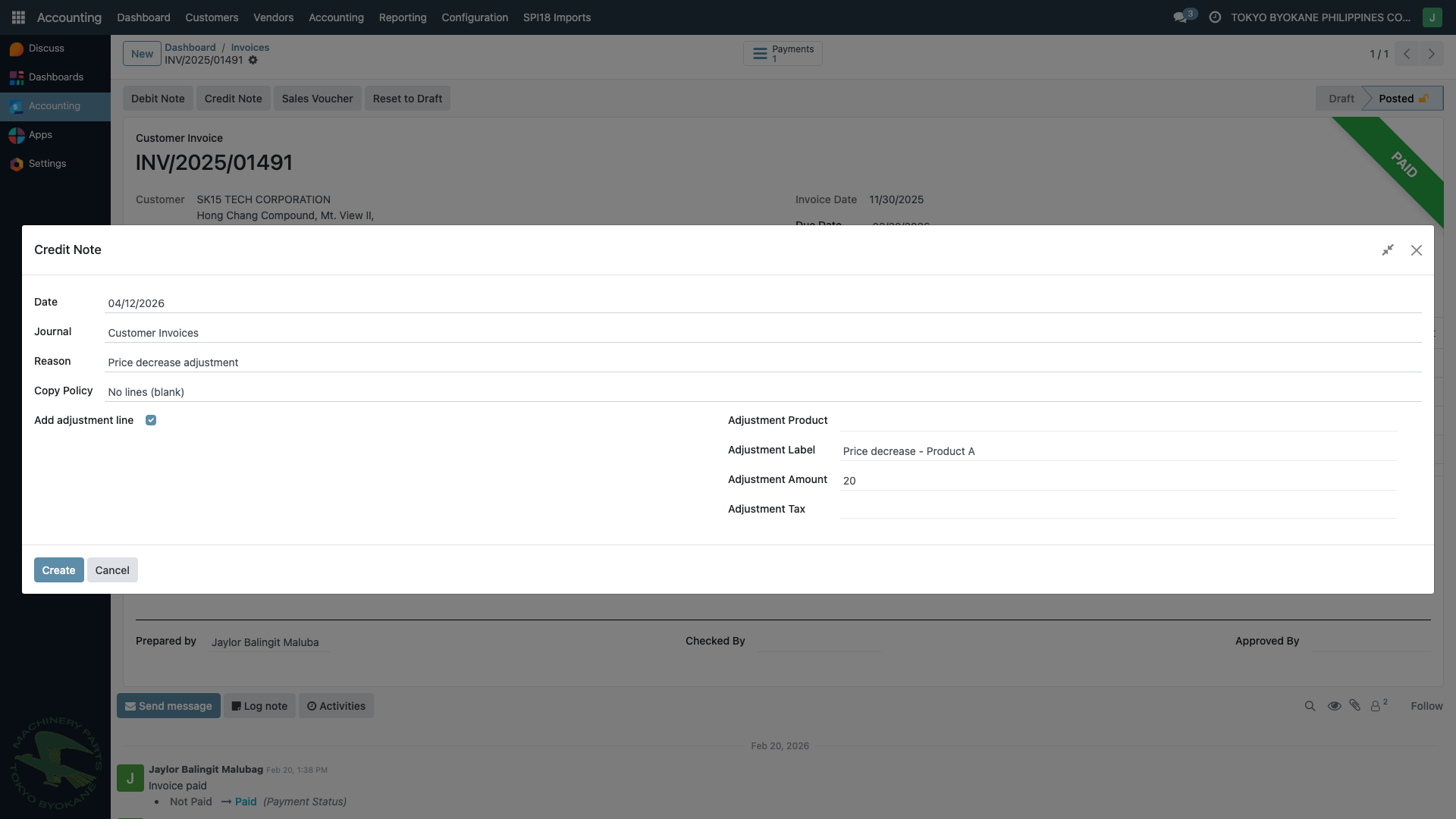
Step 5: Click "Create"
Click Create. A new draft credit note is created:
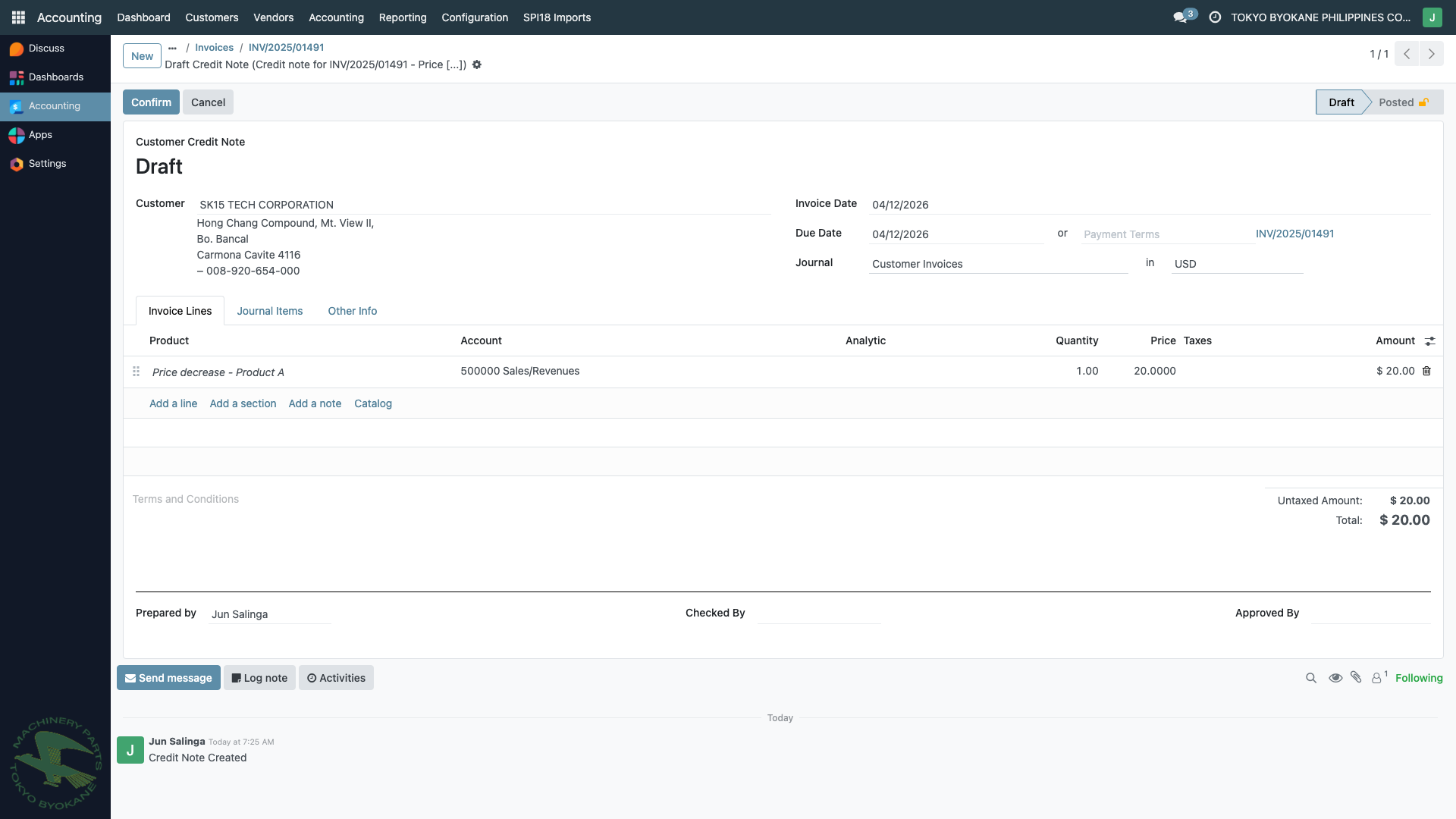
The draft shows:
- Title: "Customer Credit Note"
- Reference to the original invoice in the Origin Invoice field
- The $20.00 adjustment line
- Status: Draft (ready for review)
Step 6: Review and Confirm
Review the lines, then click Confirm to post the credit note.
Accounting Effect
| Account | Debit | Credit |
|---|---|---|
| Revenue / Sales | $20.00 | |
| Accounts Receivable | $20.00 |
The customer now has a $20.00 credit balance on their account.
What to Do with the Credit
After posting the credit note, you have two options:
Option A: Refund the Customer
Register a payment on the credit note to send money back to the customer.
Option B: Apply to Next Invoice
When the customer's next invoice is created, reconcile the credit note against it. The $20.00 credit will reduce the amount due.
:::tip Finding Credit Notes Use the search filter "Credit Notes (Price Adj.)" in the invoices list to quickly find all price adjustment credit notes. :::
Debit Note vs Credit Note - Quick Reference
| Situation | Document | Type | Customer Effect |
|---|---|---|---|
| Price went UP | Debit Note | Additional invoice | Customer owes more |
| Price went DOWN | Credit Note | Refund/credit | Customer has credit |