Receiving a Customer Payment
Once an invoice is posted, you can register a customer payment (collection) to mark it as paid. This guide covers the standard workflow of collecting payment on an existing invoice.
Open the Posted Invoice
Navigate to Customers > Invoices and open the invoice:
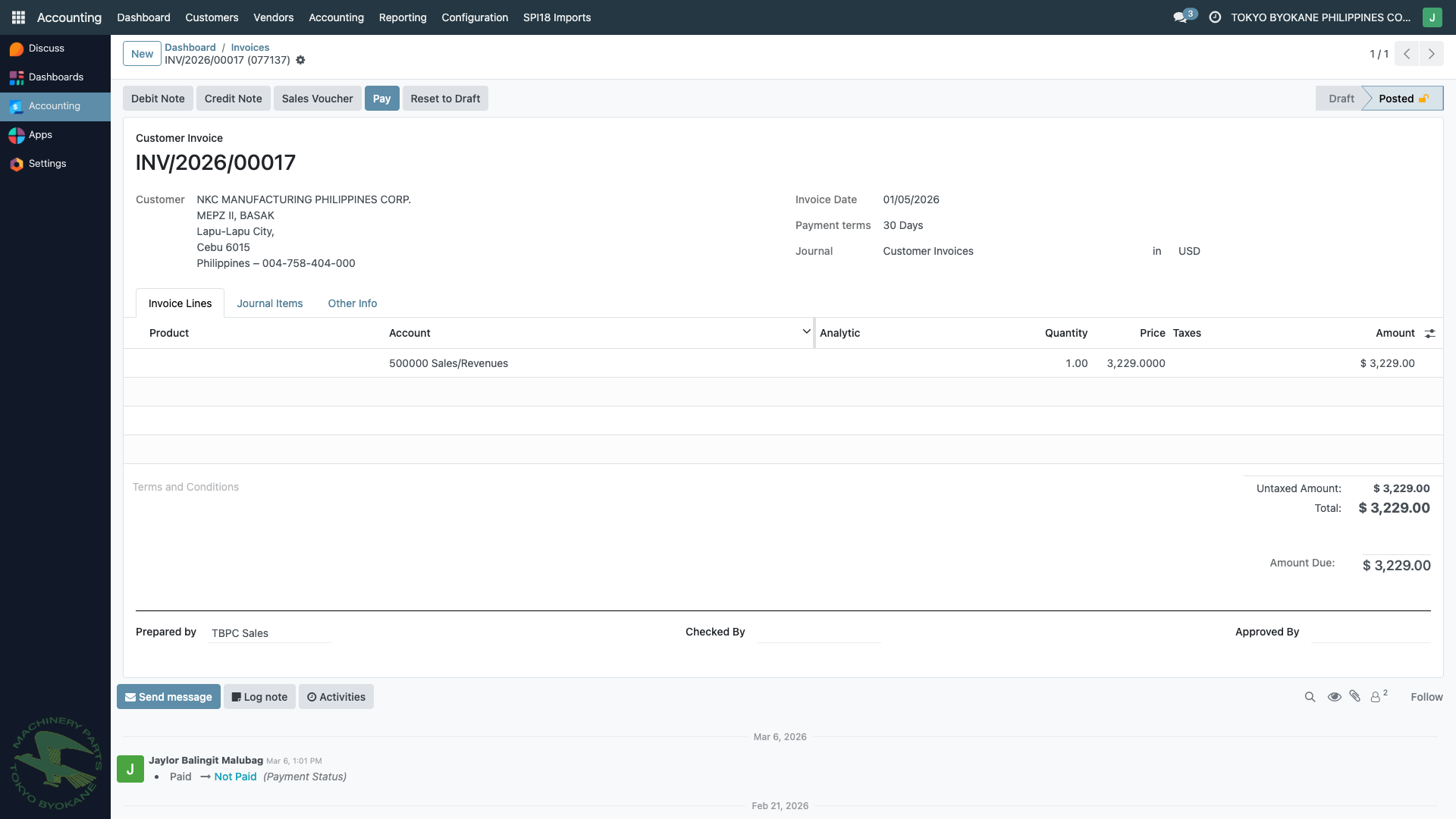
The invoice shows:
- Amount Due on the right panel
- Outstanding credits for this customer warning (if there's an advance payment — see Advance Collections)
- Register Payment button in the action bar
Click "Register Payment"
Clicking Register Payment opens a small wizard (or goes directly to a payment form) where you fill in:
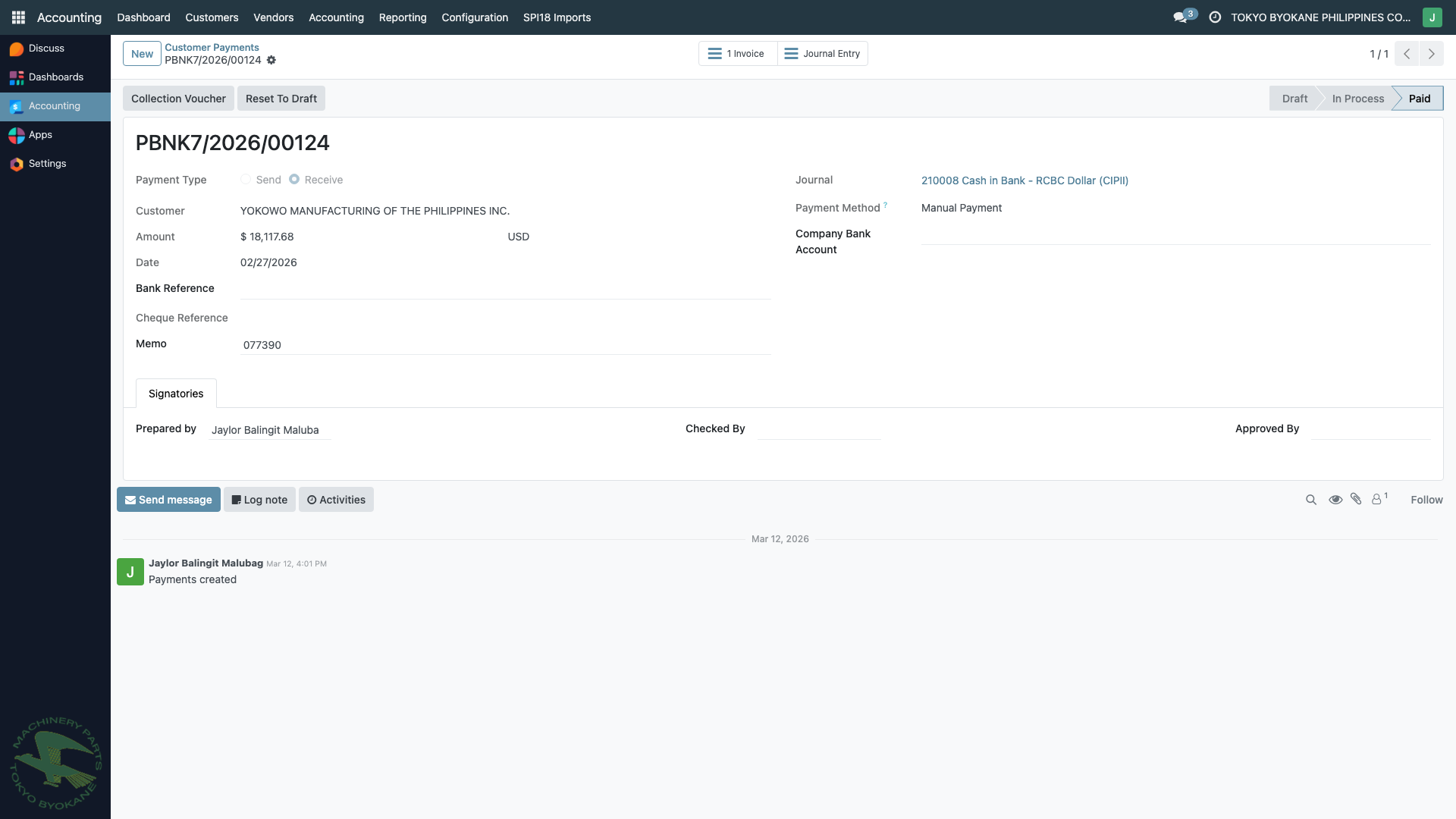
Payment Fields
| Field | What to Enter |
|---|---|
| Customer | Auto-filled from the invoice |
| Amount | Auto-filled with the invoice's outstanding balance |
| Date | Date of collection (when the check arrived / bank deposit cleared) |
| Journal | Bank journal where the money lands (e.g., 210008 Cash in Bank - RCBC Dollar (CIPII)) |
| Payment Method | Manual Payment (check), Bank Transfer, etc. |
| Bank Reference | Check number or bank deposit slip reference |
| Memo | Invoice number / reference for tracking |
Approval Workflow
The collection payment tracks:
- Prepared by — collection officer who logged the payment
- Checked by — verification signatory
- Approved by — authorization signatory
- Received by — who physically received the check / deposit confirmation
Confirm the Payment
Click Confirm to post the payment:
- Status changes from Draft to In Process / Posted
- Journal entries are automatically created:
- Debit: Bank (the collection journal — money coming in)
- Credit: Accounts Receivable (clearing the invoice)
- The payment is automatically reconciled with the original invoice
- The invoice's payment status changes to Paid
:::tip Automatic Reconciliation When you use Register Payment from an invoice, Odoo automatically links the payment to that specific invoice. No manual reconciliation is needed. :::
Print the Collection Voucher
After confirmation, click the Collection Voucher button:
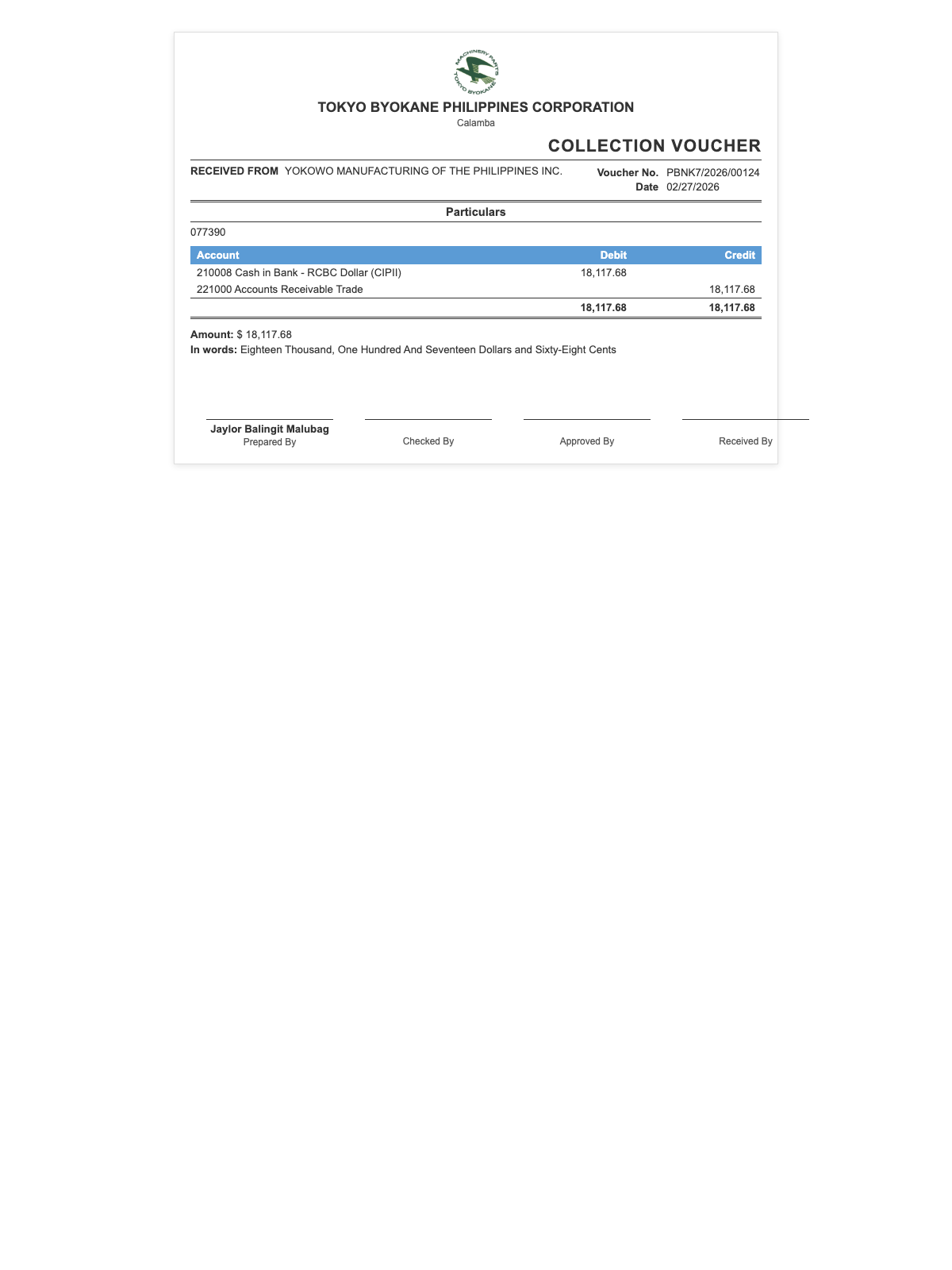
The voucher shows:
- Company header (TOKYO BYOKANE PHILIPPINES CORPORATION)
- RECEIVED FROM — customer name and TIN
- Voucher number and date
- Payment method and bank reference
- Amount — in numeric form
- In Words — written-out amount (required for checks)
- Signatures: Prepared By, Checked By, Approved By, Received By
The Collection Voucher serves as the official Official Receipt evidence for the customer payment and is required for audit purposes.
Partial Payments
By default, Register Payment creates a payment for the full invoice amount. For partial payments:
- Edit the Amount field before confirming
- Click Confirm
- The invoice shows as Partially Paid
- Register additional payments later for the remaining balance
Summary
| Step | Action | Result |
|---|---|---|
| 1 | Open posted invoice | Invoice form shows Amount Due |
| 2 | Click Register Payment | Payment form opens with prefilled values |
| 3 | Fill journal, date, bank reference | Ready to confirm |
| 4 | Click Confirm | Payment posts, invoice auto-reconciled |
| 5 | Print Collection Voucher | Official Receipt document |
:::info Check Clearing If you receive a check, consider using a Cash on Hand or Undeposited Funds journal until the check clears, then transfer it to the actual bank account. This is an optional workflow — many teams simply post directly to the bank and rely on the bank reconciliation to confirm clearing. :::