Creating Manual Journal Entries
A journal entry is the fundamental record of any financial transaction. Most entries are created automatically when you post customer invoices, vendor bills, payments, or inventory moves. However, you will occasionally need to create manual journal entries for adjustments, accruals, reclassifications, and corrections.
Navigation
Accounting > Journal Entries
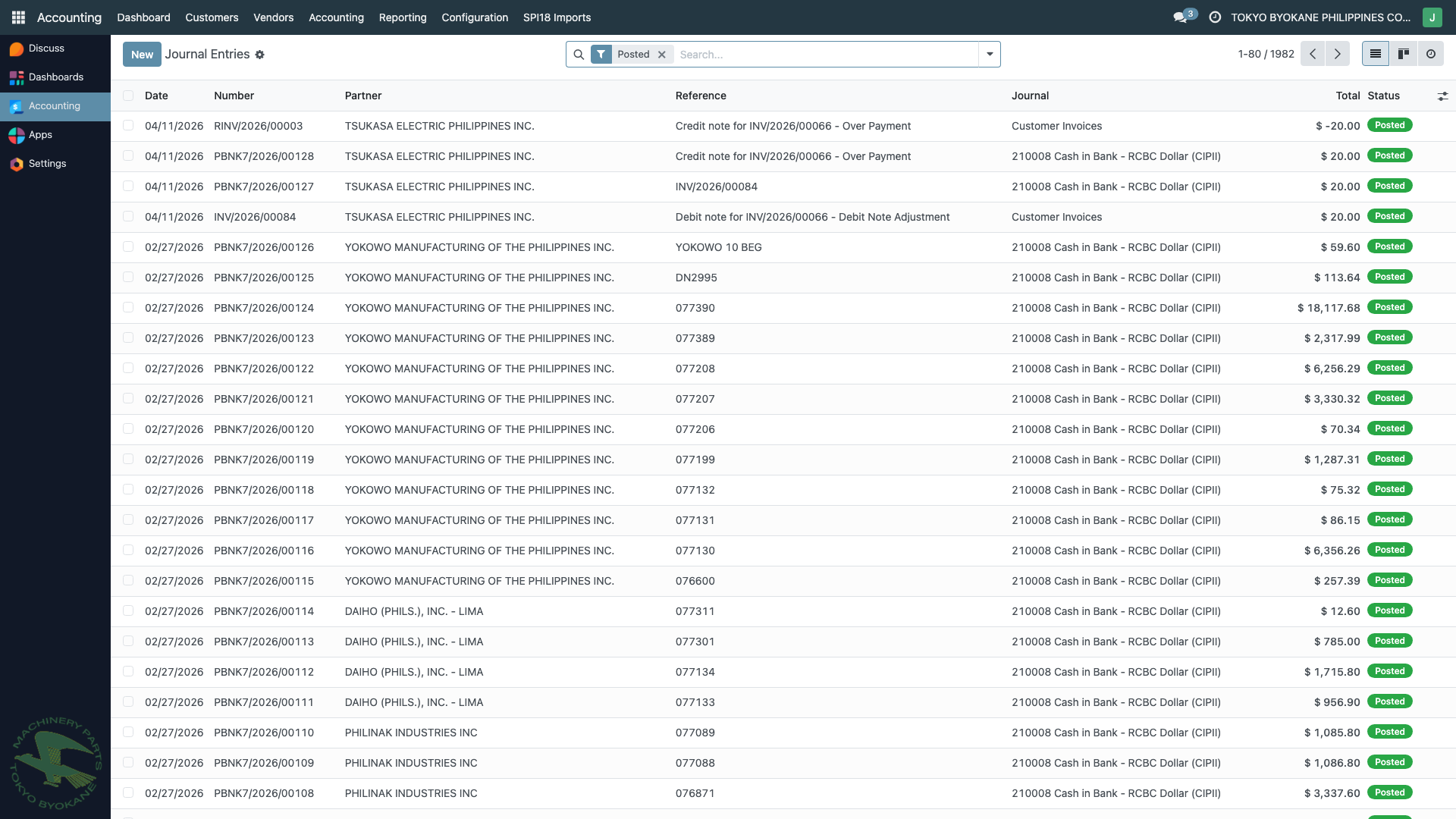
The list shows all journal entries across all journals with:
- Date — accounting date
- Number — auto-generated entry number (e.g., MISC/2025/11/0030, PBNK2/2025/00079)
- Partner — if applicable
- Reference — your internal reference
- Journal — which journal the entry posts to
- Total — total debit or credit amount
- Status — Draft or Posted
When to Create a Manual Entry
Manual entries are needed for:
| Scenario | Example |
|---|---|
| Accruals | Recording an expense incurred but not yet billed (e.g., December electricity used but bill arrives in January) |
| Prepaid adjustments | Reclassifying prepaid expenses to the period they apply to |
| Reclassifications | Moving an amount from one account to another (e.g., miscategorized expense) |
| Depreciation | If not using automatic depreciation from asset management |
| Forex revaluation | Adjusting open foreign currency balances at period-end |
| Corrections | Fixing a miscoded posting (always reverse + re-enter, never edit posted entries) |
| Year-end closing | Closing revenue and expense accounts to retained earnings |
| Petty cash reconciliation | Recording actual cash movements |
:::info Most Entries Are Automatic The majority of journal entries in ARE18 are created automatically from other documents. Use manual entries only when there's no source document (invoice, bill, payment) to drive the transaction. :::
Creating a New Entry
- Navigate to Accounting > Journal Entries
- Click New
- Fill in the header:
- Reference — your internal reference (e.g.,
JV#25-11-026-1) - Accounting Date — the date the entry should hit the GL
- Journal — typically Miscellaneous Operations for manual entries
- Currency — defaults to company currency; can be changed for multi-currency entries
- Reference — your internal reference (e.g.,
Adding Journal Lines
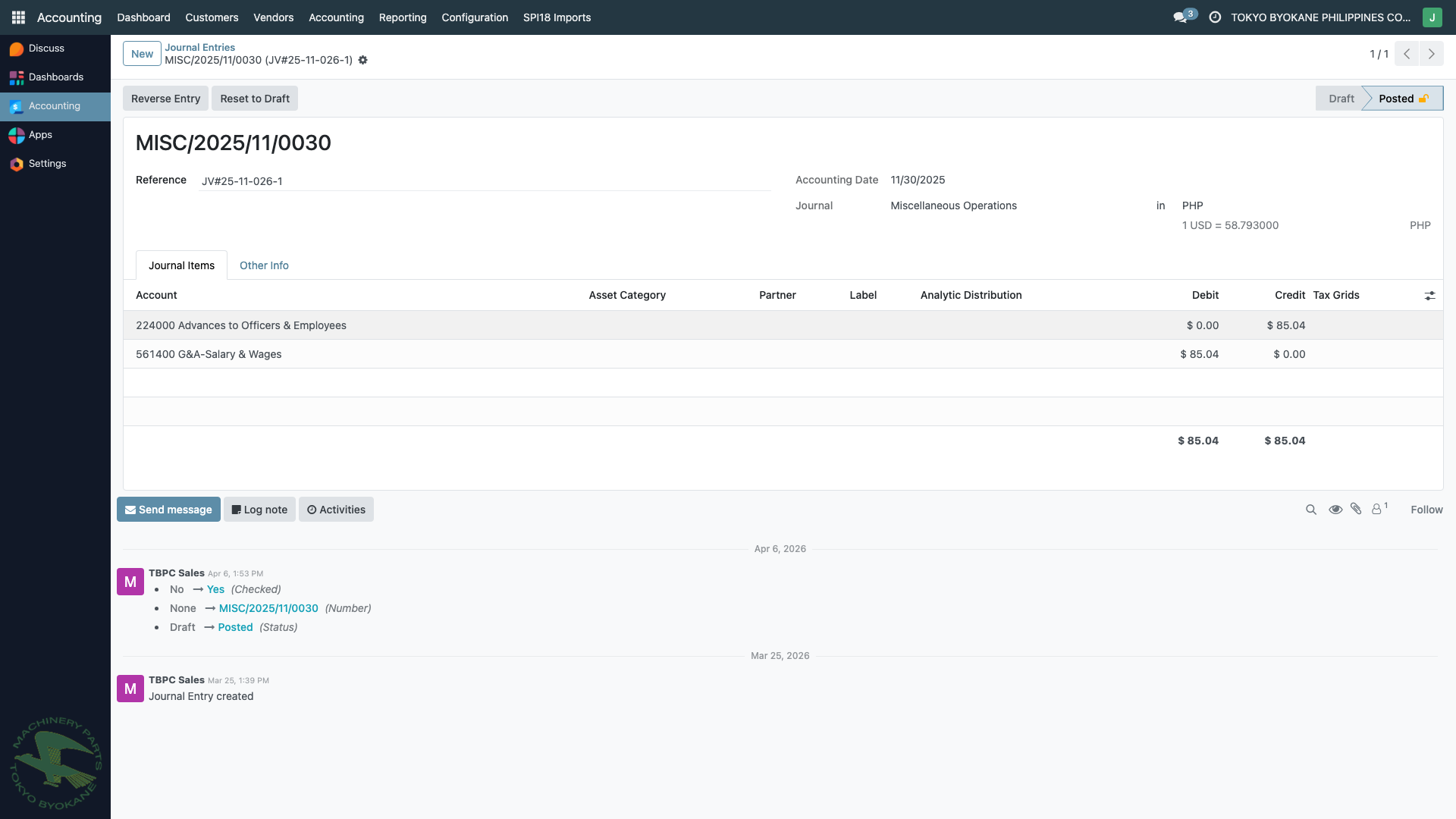
For each line in the Journal Items tab:
| Field | What to Enter |
|---|---|
| Account | The account code (e.g., 224000 Advances to Officers & Employees) |
| Partner | (Optional) Customer or vendor if the entry relates to one |
| Label | Description of the line |
| Analytic Distribution | (Optional) For analytic cost accounting |
| Debit | Debit amount |
| Credit | Credit amount |
| Tax Grids | (Optional) For tax-related entries |
Double-entry rule: Total Debit must equal total Credit. Odoo prevents you from posting an unbalanced entry.
Example: Accrual for Utilities
DR  620000 Utilities Expense           $85.96
    CR  567400 D&G Salary & Wages           $85.96
(This is just a demo pattern — real accrual entries would typically credit Accrued Expenses, not salaries.)
Multi-Currency Entries
Since TBPC uses USD as the functional currency with many PHP transactions, manual entries often involve multi-currency:
- Change the Currency field to the transaction currency (e.g., PHP)
- Enter amounts in that currency in each line
- Odoo displays the Rate (e.g.,
1.00 = 58.76meaning 1 USD = 58.76 PHP) - The company currency equivalent (USD) is computed automatically
:::tip Exchange Rate
The rate is taken from res.currency.rate based on the Accounting Date of the entry. If you need a specific rate, verify the rate record for that date first — see Multi-Currency Overview.
:::
Posting the Entry
Once the entry is complete and balanced:
- Click Confirm to post the entry
- Status changes from Draft to Posted
- The entry becomes part of the GL and is reflected in reports immediately
:::warning Posted Entries Are Immutable Once posted, you cannot delete or modify a journal entry. You can only reverse it (see Reversing Entries). This is a data-integrity control required for BIR audit compliance. :::
Best Practices
- Use clear references: Include a sequence number (e.g.,
JV#25-11-026-1) so entries can be grouped and traced - Use the Label field: Describe WHY the entry exists, not just WHAT it does
- Balance before confirming: Double-check total debits = total credits before clicking Confirm
- Batch related entries: If an adjustment affects multiple accounts, use a single entry with multiple lines rather than many small entries
- Review before posting: Manual entries bypass the normal workflow controls, so review carefully
- Add approval notes: Use the Send message feature at the bottom to document approvals in the entry's chatter
Approval Workflow
Like invoices and bills, journal entries support the Prepared By / Checked By / Approved By workflow (when using the Miscellaneous Operations journal). Use the message thread at the bottom of the entry to record internal approvals before posting.