Reversing and Correcting Entries
Posted journal entries in ARE18 cannot be deleted or directly edited — this is a fundamental data-integrity control required for BIR audit compliance under Revenue Regulations No. 11-2014. When you need to correct a posted entry, you must reverse it with an offsetting entry.
Why Entries Can't Be Deleted
| Reason | Explanation |
|---|---|
| Audit trail integrity | BIR requires a complete, immutable record of all transactions |
| Reporting consistency | Deleting entries would break historical reports |
| Reconciliation tracking | Entries linked to reconciliation cannot lose their history |
| Regulatory compliance | Revenue Regulations No. 11-2014 requires non-erasable records |
Instead of deleting, Odoo provides a Reverse Entry feature that creates an offsetting entry to cancel out the effect of the original.
How Reversal Works
Reversing a journal entry:
- Creates a new journal entry with:
- Same accounts as the original
- Debits swapped with credits (and vice versa)
- A new date (usually today, or a date you specify)
- A reference like "Reversal of MISC/2025/11/0030"
- The reversal entry is automatically posted
- Both the original and the reversal are reconciled with each other, clearing any balances
- The net GL effect is zero — as if the original entry never happened (for reporting purposes)
Steps to Reverse an Entry
Step 1: Open the Posted Entry
Navigate to Accounting > Journal Entries and open the entry you want to reverse:
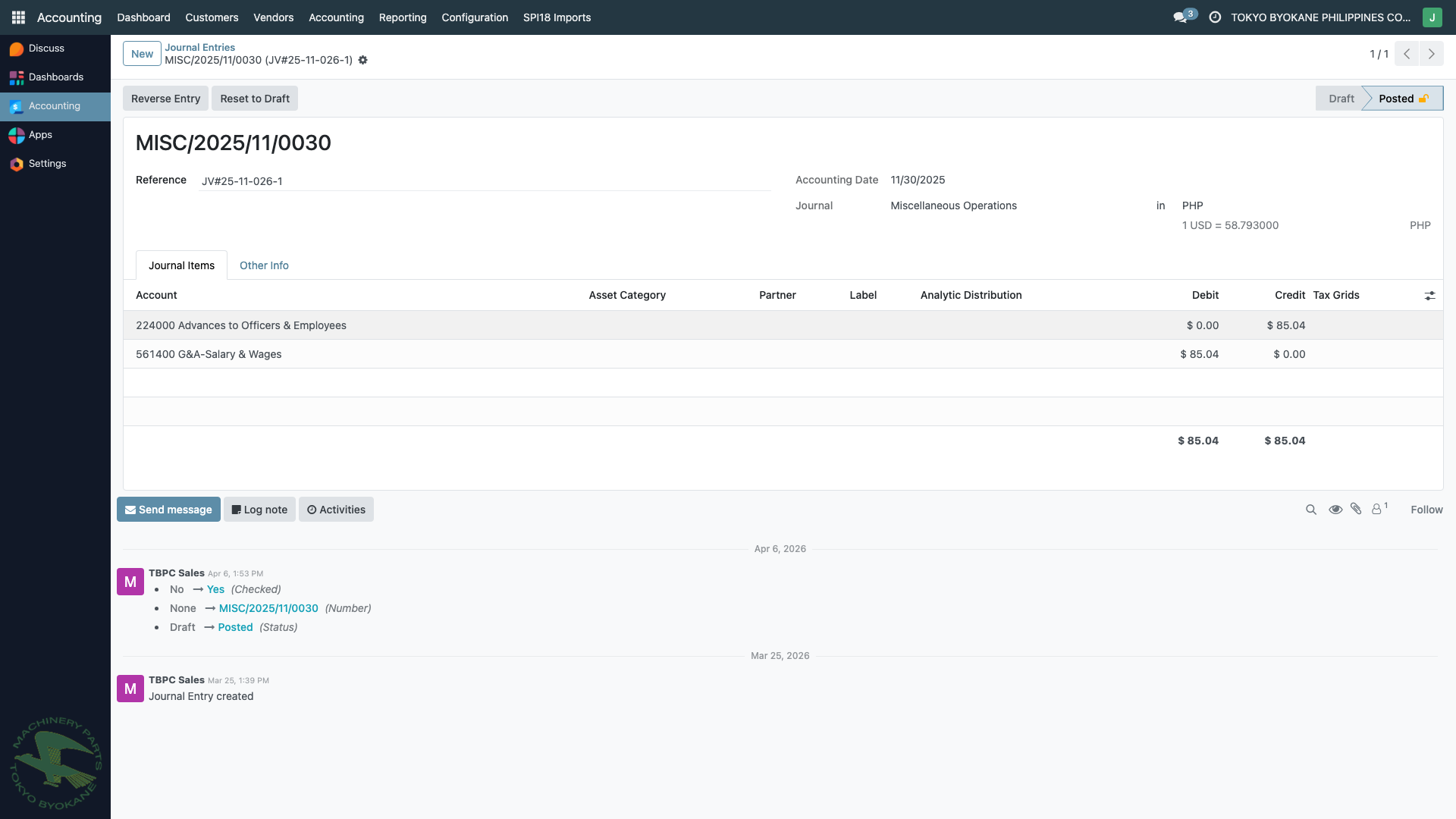
Note the Reverse Entry button in the action bar (only visible on posted entries).
Step 2: Click "Reverse Entry"
Click the Reverse Entry button. A wizard appears asking for:
| Field | What to Enter |
|---|---|
| Reversal Date | When the reversal should post (usually today, or the same date as original if still in the same period) |
| Journal | Usually the same journal as the original |
| Reason | A note explaining why the reversal is needed |
Step 3: Confirm the Reversal
Click Reverse. Odoo creates the reversal entry and posts it immediately.
The original entry now shows:
- A link to the reversal entry
- A "Reversed" status indicator
- Reconciled journal lines (the original and reversal offset each other)
Correcting a Miscoded Entry
When you realize a posted entry has wrong accounts or amounts, the correction workflow is:
Pattern A: Simple Reversal + Re-entry
- Reverse the incorrect entry (as described above)
- Create a new entry with the correct accounts and amounts
- Post the new entry
This creates three entries in the audit trail:
- Original (incorrect) — Posted
- Reversal — Posted
- Correction — Posted
The net effect is the correction, but the full trail is preserved.
Pattern B: Swap Account in a New Entry
If the error is a reclassification (wrong account, but correct total):
DR  Correct Account         $X
    CR  Wrong Account              $X
This "moves" the amount from the wrong account to the correct one without reversing anything. Useful for simple account reclassifications.
When Reversal Is Not Enough
Sometimes a simple reversal doesn't give you the audit trail you need. Consider a correcting journal entry (Pattern B above) when:
- The original entry is correct in total, just miscoded
- You need to keep the original entry visible for audit reasons
- Multiple related entries need a unified correction
Reversing Entries Across Periods
Be very careful when reversing an entry from a closed period:
- If the period is locked (see Lock Dates), the reversal may be blocked entirely
- If allowed, the reversal date should be in the current open period, not the period of the original entry
- Reversing across periods will affect two reporting periods — you may need to add an accrual entry in the old period and a reversal in the new period to fully represent the correction
:::warning Period Integrity If a period is locked, reversing old entries requires unlocking the period first — which itself is a controlled operation. Always consult with your Accounting Superuser before reversing entries from prior reporting periods. :::
What Reversal Does NOT Do
- Does not delete — the original entry is still visible in the GL
- Does not affect reports for past dates — historical reports still show the original entry
- Does not unreconcile — reconciled entries cannot simply be reversed; they must be un-reconciled first
- Does not retroactively change balances — the reversal posts with its own date
Best Practices
- Reverse quickly — if you spot an error immediately after posting, reverse it the same day
- Document the reason — always fill in the Reason field with a clear explanation
- Use chatter — note in the entry's message thread what was wrong and what was done
- Review before re-entering — after reversal, double-check the correction before posting the new entry
- Avoid period boundaries — if possible, do the reversal and correction in the same period
Summary
| Action | Result |
|---|---|
| Click Reverse Entry | Creates offsetting entry, auto-posts it, reconciles both |
| Original entry | Stays visible in GL, marked as reversed |
| Reversal entry | New entry in the journal, offsetting the original |
| Audit trail | Complete — both entries visible forever |