Lock Dates and Period Close
Lock dates are a period-integrity control that prevents users from creating, editing, or reversing journal entries before a specified date. They are the primary mechanism for closing an accounting period in ARE18 and are required for BIR audit compliance.
Why Lock Dates Matter
Without lock dates, a user could accidentally (or intentionally) backdate entries into a period that has already been reported to BIR or distributed as financial statements. This would:
- Invalidate filed tax returns
- Create mismatches between prior reports and current GL balances
- Compromise audit integrity
- Violate BIR Revenue Regulations on CAS (Computerized Accounting Systems)
Lock dates enforce the rule: once a period is closed, nothing can change it.
The Lock Dates Wizard
Navigation: Accounting menu > Lock Dates
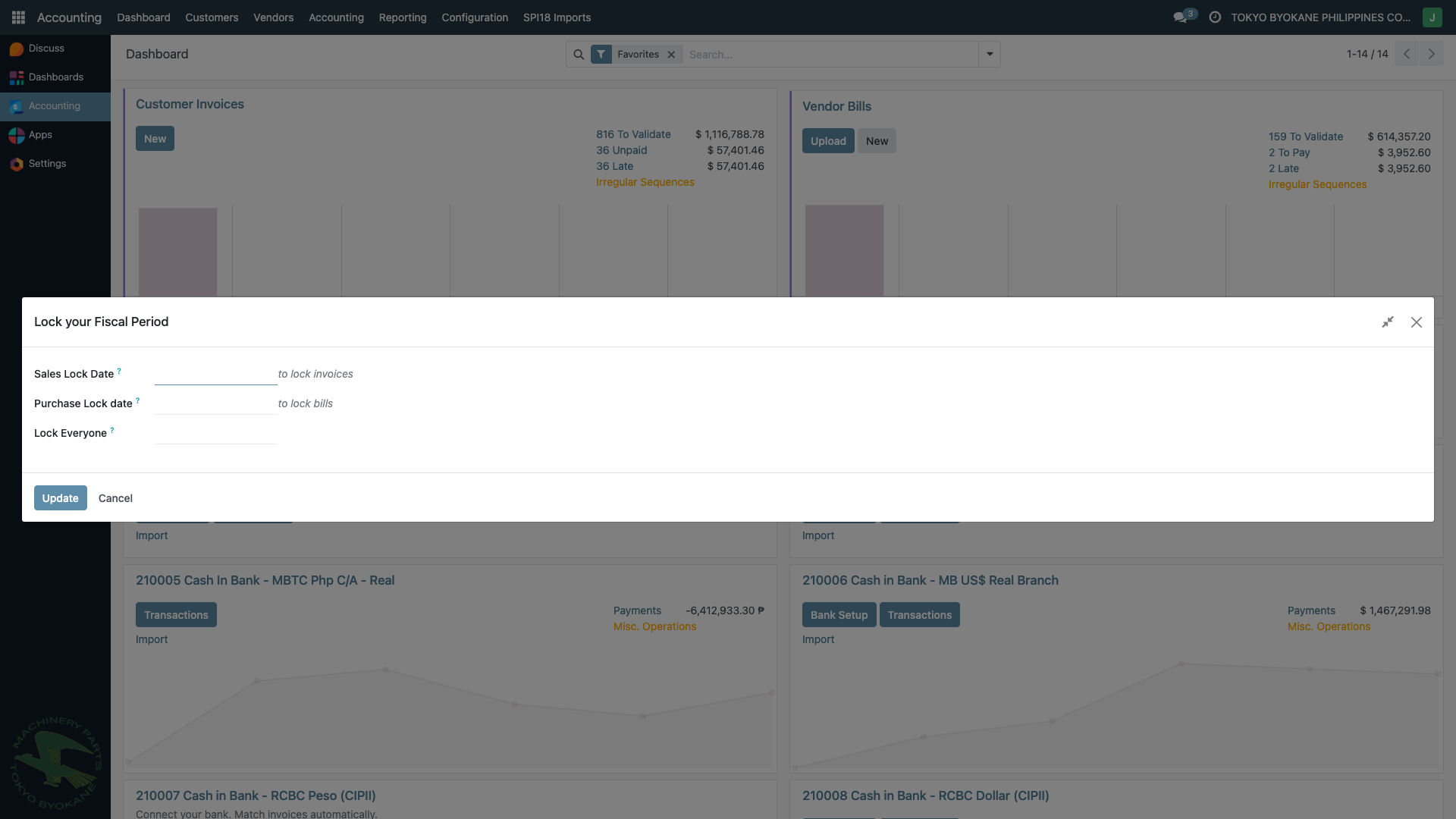
The wizard is titled "Lock your Fiscal Period" and offers three lock types:
| Lock Type | What It Locks | Who It Affects |
|---|---|---|
| Sales Lock Date | Customer invoices, credit notes, and sales journal entries | All users, including advisors |
| Purchase Lock Date | Vendor bills, refunds, and purchase journal entries | All users, including advisors |
| Lock Everyone | All journal entries of any type | Every user in the system |
Sales Lock Date
Purpose: Close the sales side of the period — invoices and credit notes can no longer be created, modified, or reversed with a date on or before the lock date.
Typical use: After you've generated the Sales Book report for BIR submission for a month, set the Sales Lock Date to the last day of that month to prevent any further changes.
Example: Setting Sales Lock Date to November 30, 2025 means:
- No new customer invoices can be posted with a date of Nov 30 or earlier
- No existing invoices dated Nov 30 or earlier can be edited or reversed
- Draft invoices with those dates cannot be confirmed
Purchase Lock Date
Purpose: Close the purchase side of the period — vendor bills can no longer be created, modified, or reversed with a date on or before the lock date.
Typical use: After you've generated the Purchase Book, BIR 2307 forms, and SLSP for BIR submission, set the Purchase Lock Date.
Why separate from Sales Lock Date? Sales records are typically finalized earlier in the month-end process (the business knows what it billed), while vendor bills may continue to arrive for several days into the new month. Having separate locks lets you close sales without forcing purchases to close at the same time.
Lock Everyone
Purpose: The strongest lock — applies to all journal entries (sales, purchases, miscellaneous, payments, etc.) before the specified date.
Typical use: After you've completed all month-end adjustments, run financial statements, and submitted BIR reports, set the Lock Everyone date to the last day of the month. This fully closes the period.
When to use: Set this last in the period-close process, after:
- All invoices and bills for the period are posted
- All customer/vendor payments are posted and reconciled
- All manual journal entries (accruals, adjustments) are posted
- Bank reconciliation is complete
- Financial statements have been reviewed and approved
- BIR reports have been filed
Typical Period-Close Workflow
Here's the recommended order for closing a monthly period at TBPC:
Step 1: Complete all postings
- Post any remaining draft invoices, bills, and payments
- Enter all manual journal entries (accruals, adjustments, depreciation)
Step 2: Reconcile
- Complete bank reconciliation for all bank journals
- Verify all customer and vendor open balances
Step 3: Generate reports
- Run the Trial Balance and verify it balances
- Run the General Ledger and spot-check accounts
- Generate Sales Book, Purchase Book, CRB, CDB for BIR
- Generate Balance Sheet and Profit & Loss for management
Step 4: Set Sales Lock Date
- Once the sales reports are filed, lock the sales side first
- This prevents any accidental invoice changes while purchase processing continues
Step 5: Set Purchase Lock Date
- Once all vendor bills for the month are posted and purchase reports are filed, lock the purchase side
Step 6: Set Lock Everyone
- After all month-end adjustments and BIR submissions are done, apply the Lock Everyone date
- The period is now fully closed
How to Set a Lock Date
- Navigate to Accounting menu
- Click Lock Dates under Actions
- In the wizard:
- Enter the desired lock date in the appropriate field (Sales, Purchase, or Lock Everyone)
- The date should usually be the last day of the period you're closing (e.g., 11/30/2025)
- Click Update
- The lock takes effect immediately
:::tip One Field at a Time or All Together You can set all three fields at once if you're closing the period in one go, or set them progressively as each side is closed. Most teams set Sales and Purchase locks during month-end close and the Lock Everyone date a few days later after final reviews. :::
What Happens When a Period Is Locked
User tries to create a backdated entry
Odoo displays an error like:
"You cannot add/modify entries prior to and inclusive of the lock date"
User tries to edit a posted entry in a locked period
Error:
"You cannot modify a posted entry of this journal. The entry is posted or reconciled."
User tries to reverse an entry in a locked period
Error:
"You cannot reverse a journal entry before the lock date"
Unlocking a Period
If you need to unlock a period (e.g., to make a legitimate correction that was missed):
- Navigate to Accounting > Lock Dates
- Clear the lock date field (make it empty) or set it to an earlier date
- Click Update
:::warning Unlocking Is a Controlled Operation Unlocking a period should be done only by the Accounting Superuser and only when absolutely necessary. Always:
- Document the reason for unlocking
- Make the correction
- Re-apply the lock date immediately after
- Note the change in a period-close log for audit trail :::
Lock Dates and Reversals
If you attempt to reverse an entry that falls before a lock date:
- If the reversal date is after the lock date → Odoo may allow it (the reversal posts in the open period)
- If the original entry's date falls within the lock, Odoo will typically still allow the reversal because the reversal itself has a new, later date
However, some lock-sensitive operations (like modifying reconciliations or deleting attachments tied to locked entries) are still blocked.
Common Questions
Q: Can I lock only a specific journal (e.g., only the Sales Journal)? A: No — lock dates are global per type (Sales, Purchase, All). To control per-journal, you'd need custom access rules.
Q: What happens to future-dated entries when I set a lock date? A: Nothing. Lock dates only affect entries on or before the lock date. Future-dated entries are unaffected.
Q: Can I set different lock dates per company? A: Yes — lock dates are stored per company, so each TBPC company (if there are multiple) can have independent locks.
Q: Does the Lock Date prevent new payments from coming in? A: Only if the payment date is on or before the Lock Everyone date. New payments with today's date are always allowed.
Best Practices
- Set lock dates monthly — close each month as soon as BIR reports are filed
- Don't skip months — always close periods in order; locking a later period without an earlier one creates gaps
- Document when you lock — use the chatter on relevant reports or a separate log
- Review before locking — once locked, unlocking is a controlled operation
- Train the team — make sure users know what "locked period" means so they date new entries correctly
- Use in combination with approvals — lock dates are a technical control, but internal approval workflows are still needed for day-to-day oversight
Related Pages
- Creating Manual Journal Entries — how to post the adjustments before locking
- Reversing Entries — how reversals interact with lock dates
- BIR Books of Accounts — reports to generate before locking a period