Manual SI & DO
The Manual SI & DO form is where operations transcribes each shipment into the BIR-registered loose-leaf Sales Invoice and Delivery Receipt that physically travels with the delivery.
It is also the single hand-off point between SPI18 (operations) and ARE18 (accounting): once the SIDO is sent to accounting, the corresponding customer invoice is posted in ARE18 and the A/R is recorded.
Audience: Operations staff who issue Manual SI & DO, accounting reviewers who approve them before A/R booking, and anyone affected by post-confirmation price changes.
Navigation: Operations → Customer Compliance → Manual SI & DO
The problem this guide solves
A common in-flight scenario:
- Sales Order is confirmed at price
A. - Operational Delivery Receipt is being prepared.
- Item price changes to
A'(new contract, customer agreement, correction). - Manual SI & DO has not yet been issued.
Because the Manual SI is the BIR-binding document and the trigger for sending A/R to accounting, two questions need explicit answers:
- Which price should the Manual SI carry — the original
Aor the updatedA'? - Once we send to accounting, how do we make sure the price is locked and any later corrections go through the proper Credit/Debit Note path?
The lifecycle below captures the price exactly when it should be locked, gives accounting a review window, and provides explicit controls for the in-between cases.
Lifecycle
Draft  →  Invoice Prepared  →  Sent to Accounting
              │
              └──→  Back to Draft  (discards the prepared invoice)
| State | Meaning | What you can do |
|---|---|---|
| Draft | SIDO is being prepared. Nothing has reached ARE18 yet. | Edit lines, prices, change SO source, click Refresh prices from S.O. |
| Invoice Prepared | A draft customer invoice has been created in ARE18. SIDO is locked. Accounting can review. | Send to Accounting (post) · Back to Draft (discard) |
| Sent to Accounting | The invoice is posted in ARE18. A/R is recorded. | Cancel only — corrections require a Credit/Debit Note via ARE18. |
| Cancelled | SIDO and its linked invoice are cancelled. | Reset to Draft. |

Step 1 — Create a SIDO and import lines from the S.O.
Open Operations → Customer Compliance → Manual SI & DO and click New.
- Pick the Customer.
- Click Import lines from S.O.... in the Lines tab.
- Pick the source SO and tick the lines to bring in.
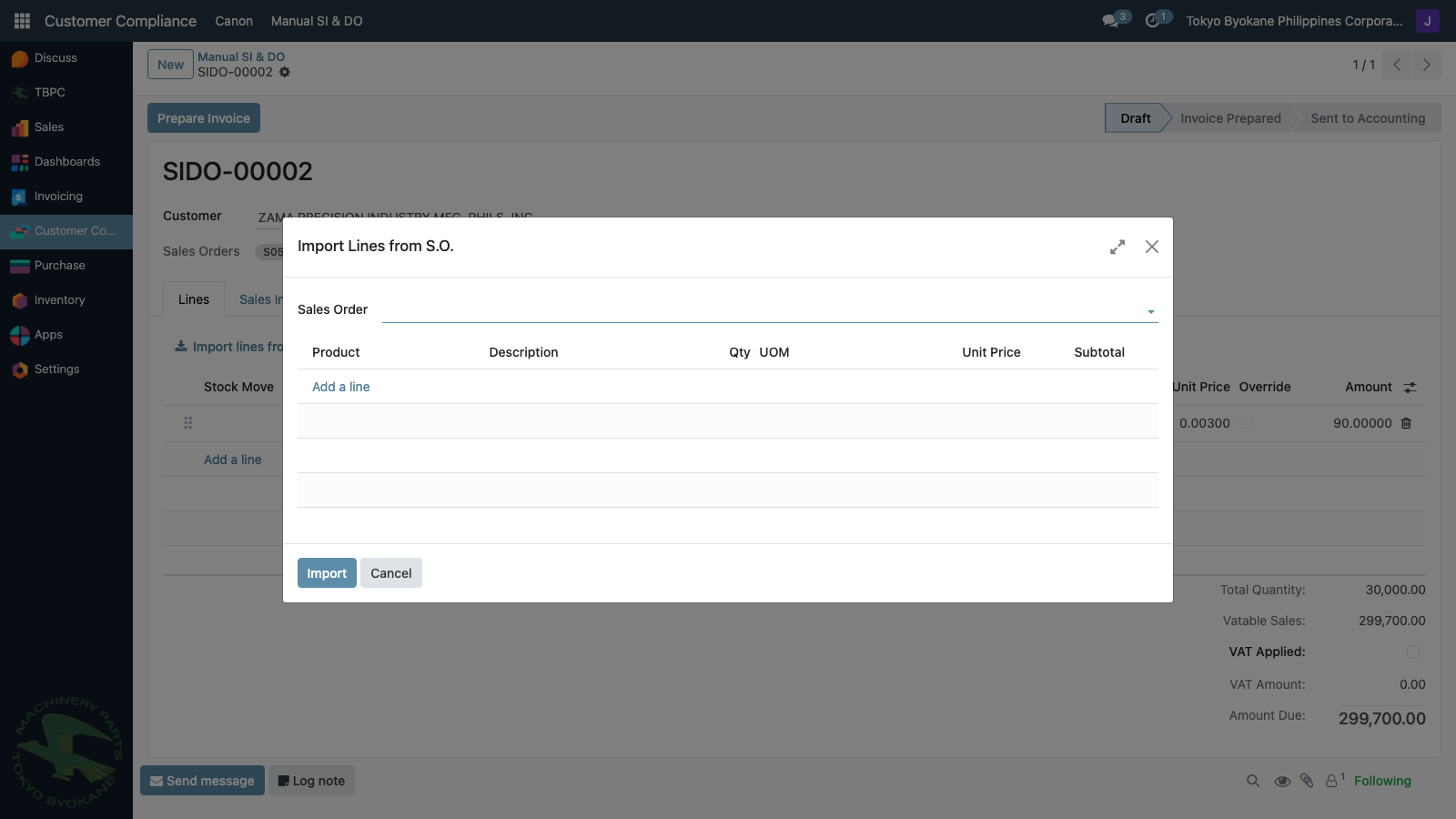
Lines that have already been invoiced — on a previous SIDO that is Invoice Prepared, Sent to Accounting, or otherwise has a non-cancelled invoice — are automatically hidden so they can't be double-billed. The same rule applies to Import lines from D.O....
After import, every Sales Order referenced by any line shows up as a tag in the header. A single SIDO can pull lines from multiple SOs of the same customer, and the tags reflect that automatically (the field is read-only — derived from the lines).

Step 2 — Detect price drift
If the price on the linked Sales Order changes after import — or if you typed a different price into a SIDO line manually — the row turns orange to flag the drift visually:

You have two ways to resolve it.
Option A — Pull the new SO price into the SIDO
Click Refresh prices from S.O. above the lines.

Each price change is recorded in the chatter so the audit trail is preserved:
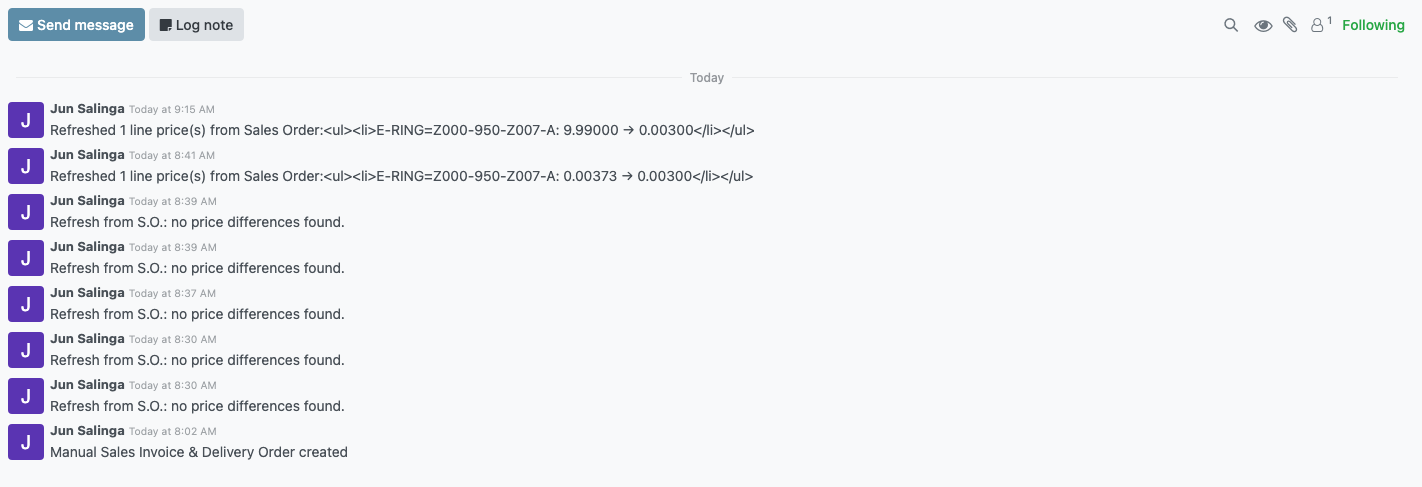
Option B — Keep the SIDO price as a manual override
If the BIR document was already issued at a price that intentionally differs from the SO (rare — typically a manually-approved correction), tick the Override column on the affected line. The row becomes muted/grey to indicate "I know this differs from the SO, that's intentional."

The Override column is hidden by default. Click the optional-columns icon at the right edge of the list header to enable it.
Step 3 — Prepare Invoice
When the lines are correct, click Prepare Invoice in the header.
This:
- Creates a draft customer invoice in ARE18 linked to the SIDO.
- Locks the SIDO so no more edits are possible without going back to draft.
- Moves the SIDO state to Invoice Prepared.
If any line still shows price drift (and isn't marked as Override), Prepare is blocked with a clear list of mismatches:
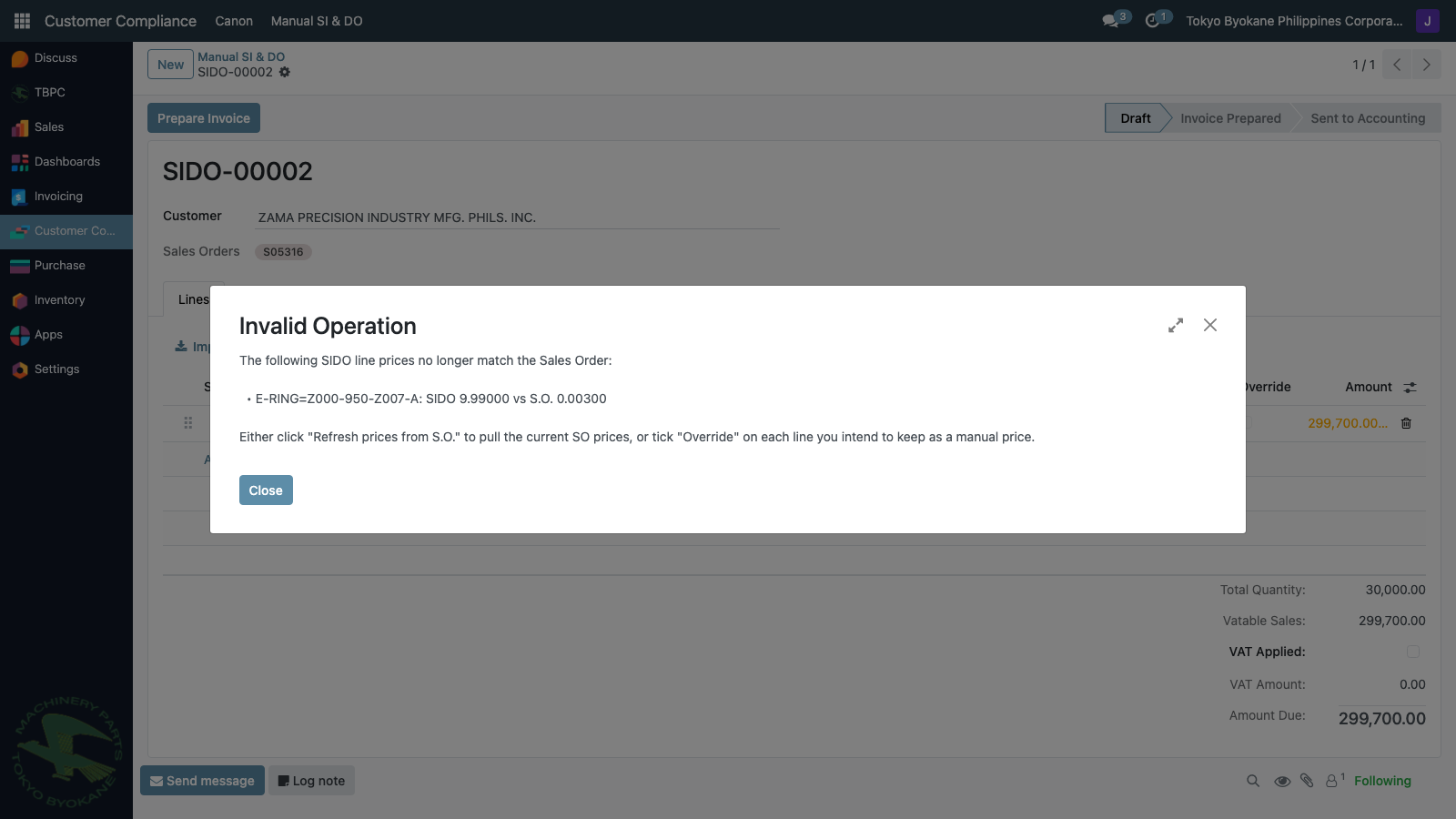
Step 4 — Accounting reviews the prepared draft invoice
The SIDO links to the draft invoice via the Customer Invoice field on the right of the header. Accounting opens it in ARE18 and reviews:
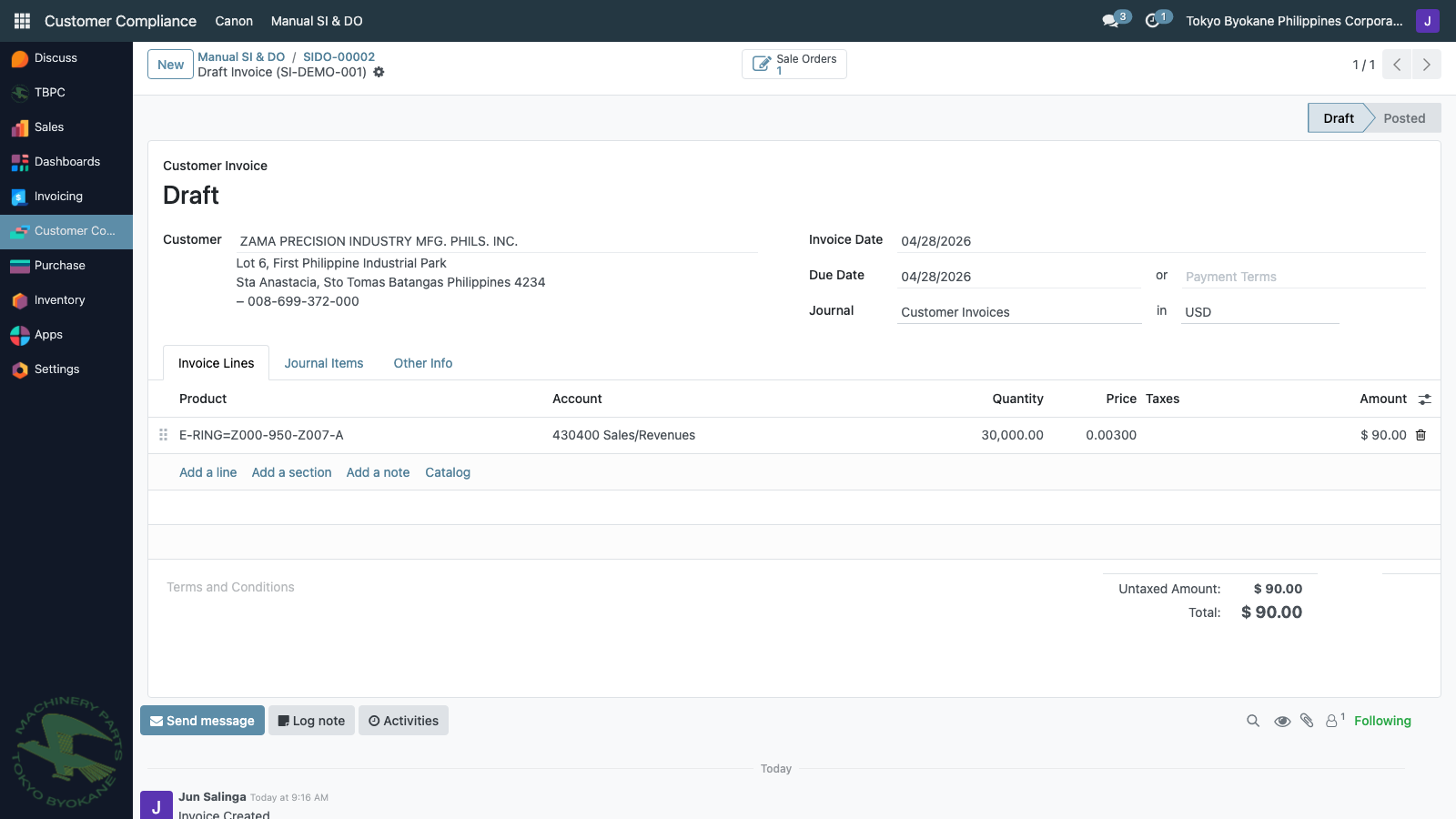
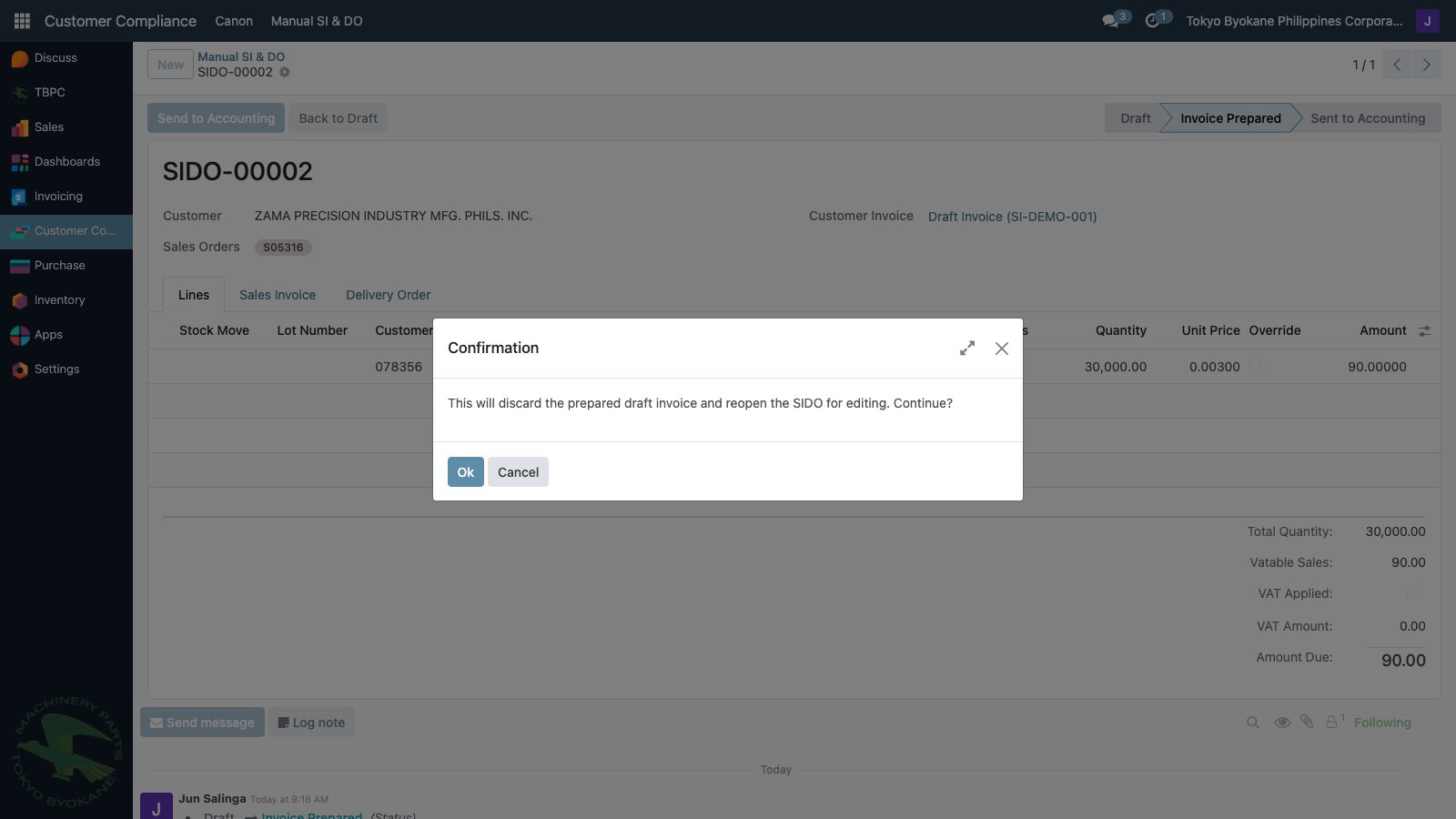
If something is wrong, anyone with access to the SIDO can click Back to Draft — this discards the draft invoice in ARE18 and reopens the SIDO for editing. Nothing has been booked yet, so there's no audit-trail consequence.
Step 5 — Send to Accounting (post the invoice)
When accounting is happy with the draft, return to the SIDO and click Send to Accounting.
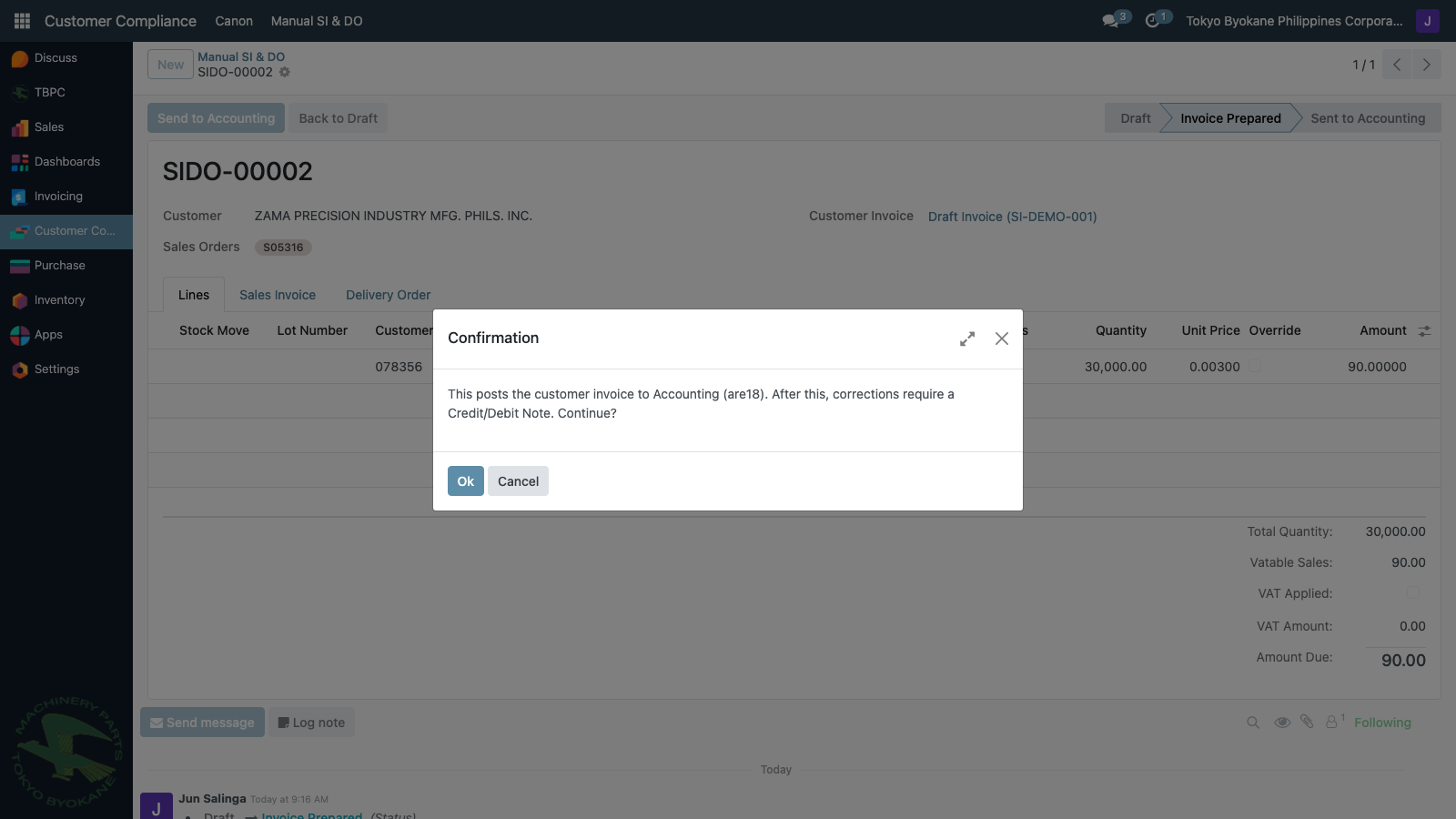
The confirm dialog reminds you that this is the irreversible booking moment. After confirming:
- The invoice is posted in ARE18 → A/R is recorded.
- The SIDO state moves to Sent to Accounting.
- The SIDO is permanently locked.
Any corrections after this point go through the existing ARE18 Credit Note / Debit Note flow against the posted invoice — see Credit Notes and Debit Notes.
Quick reference — where to make a price change
| When the price needs to change | Edit it on |
|---|---|
| Before any SIDO has been created | Sales Order line |
| SIDO exists in Draft, customer agreed to the new price | SO line, then click Refresh prices from S.O. on the SIDO |
| SIDO exists in Draft, BIR doc legitimately needs a different price | SIDO line + tick Override |
| SIDO is Invoice Prepared | Click Back to Draft, then handle as above |
| SIDO is Sent to Accounting | Issue a Credit Note / Debit Note in ARE18 against the posted invoice |