Receipt Over-Validation Fix
This guide explains how to correct a receipt that was validated for more than what physically arrived. The fix uses Odoo's standard Return Transfer feature — there is no need to delete or reverse the original picking.
Audience: Warehouse staff, Purchasing officers, Inventory controllers.
Scenario
A purchase order was placed with a vendor for 60,000 units. When the delivery arrived, only 30,000 units were physically received — but the warehouse user mistakenly clicked Validate on the receipt for the full 60,000.
| PO Quantity | Physically Received | Validated in Odoo | |
|---|---|---|---|
| Before fix | 60,000 | 30,000 | 60,000 ❌ |
| After fix | 60,000 | 30,000 | 30,000 ✅ |
Symptoms:
- Stock on-hand is overstated by 30,000 units.
- The PO shows as "Fully Received" even though half is missing.
- If the vendor bill was already posted, Accounts Payable is also overstated.
Wrong reactions to avoid:
- ❌ Don't try to delete the validated receipt — Odoo will block it because it has stock moves.
- ❌ Don't manually adjust on-hand quantity in Inventory > Operations > Physical Inventory as the first step — that loses the audit trail and doesn't fix the PO or the bill.
Decide Which Path Applies
Before fixing in Odoo, ask: what really happened to the missing 30,000 units?
| Situation | Path | What Odoo will do |
|---|---|---|
| The 30,000 units are still coming in a later delivery | Path A — Return with Backorder | Reopens the receipt for the remaining 30,000 so it can be validated when it actually arrives. |
| The 30,000 units will never arrive (lost / cancelled / vendor short-shipped permanently) | Path B — Return without Backorder | Closes the PO at the corrected 30,000. A vendor credit note is required if a bill was already posted. |
If you are not sure yet, choose Path A — you can always cancel the backorder later.
Path A — Return with Backorder
Use this when the missing 30,000 units are still expected from the vendor in a later shipment.
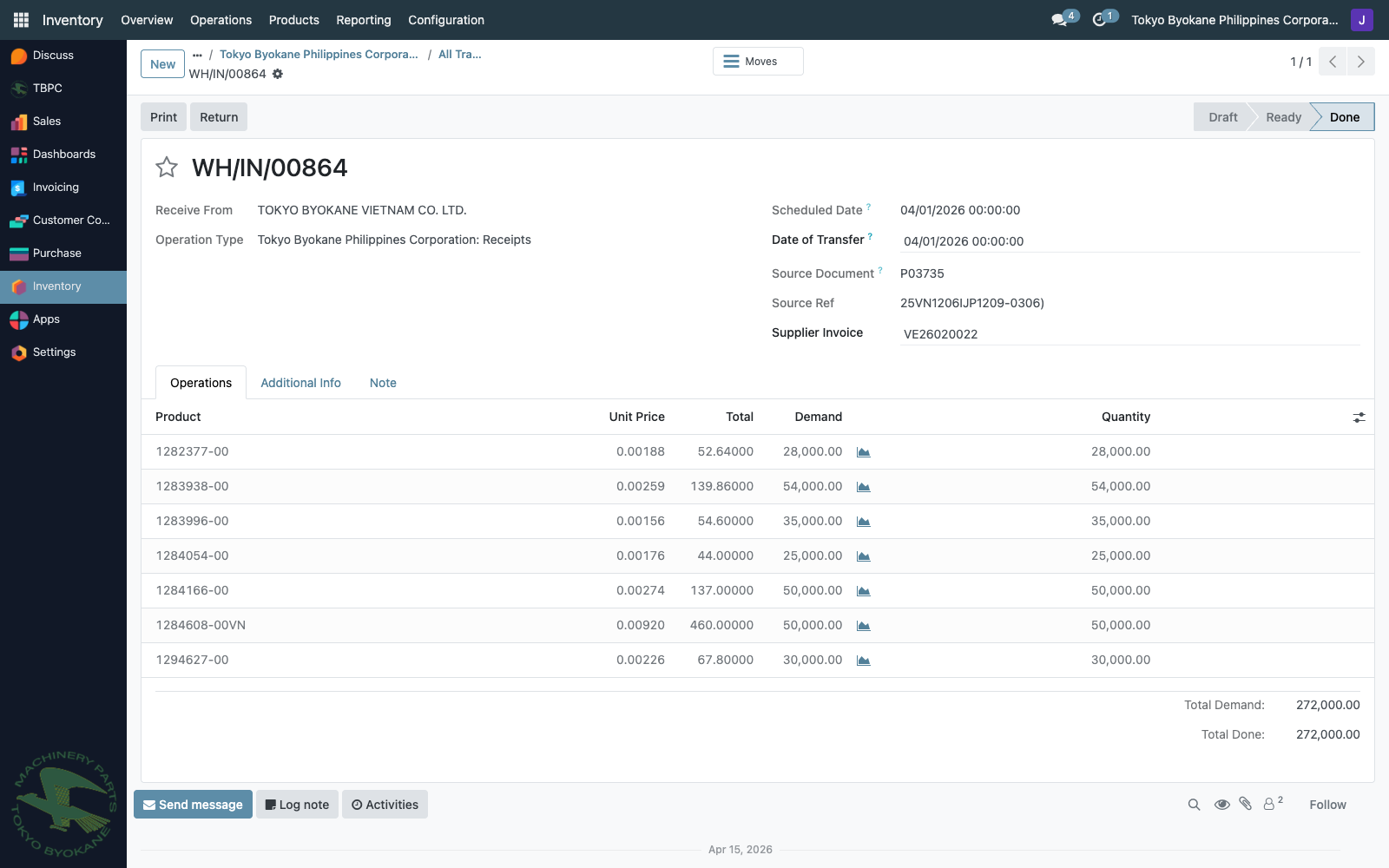
Step 1: Open the validated receipt
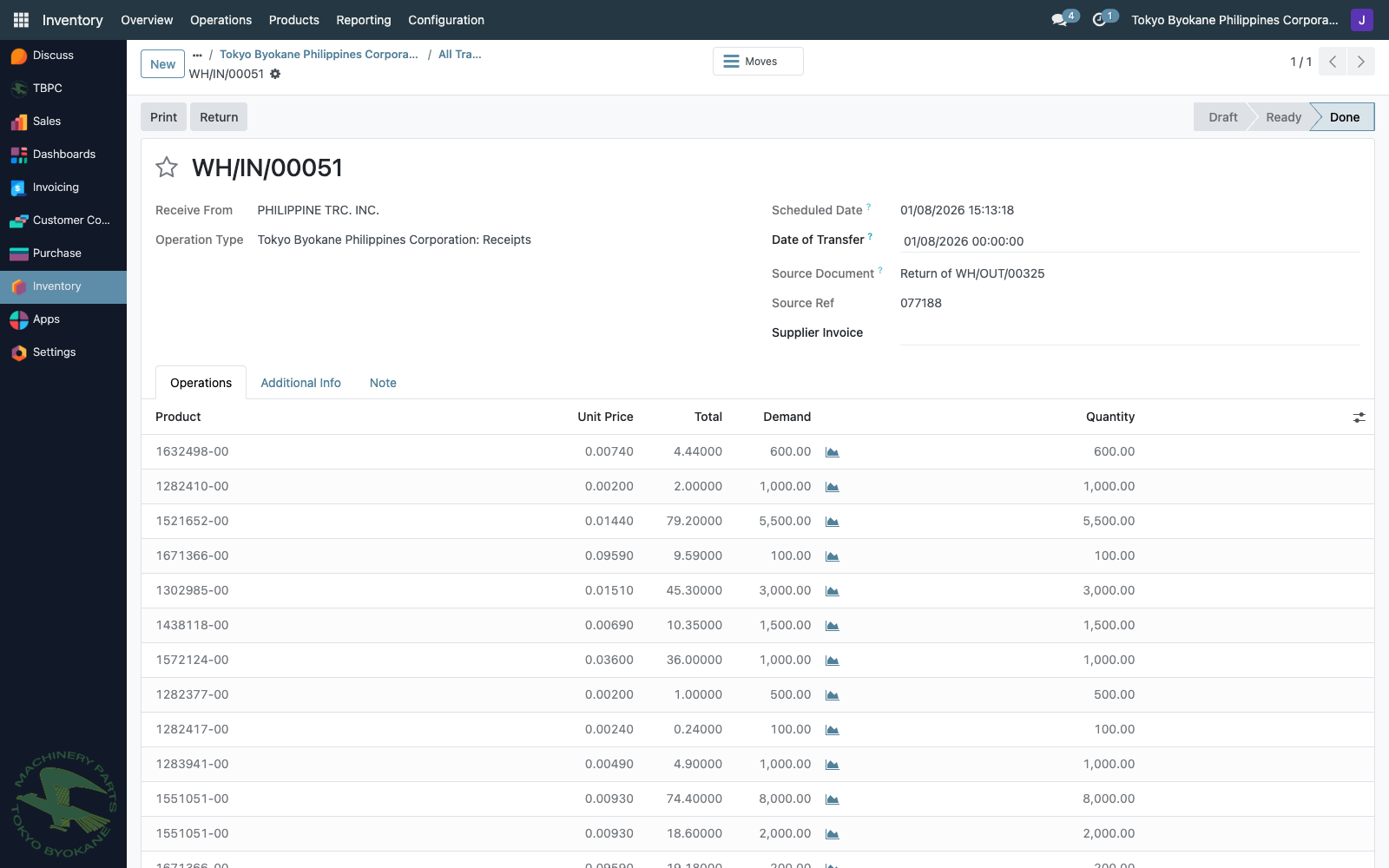
Navigate to Inventory > Operations > Transfers and open the receipt that was over-validated. Its status should be Done.
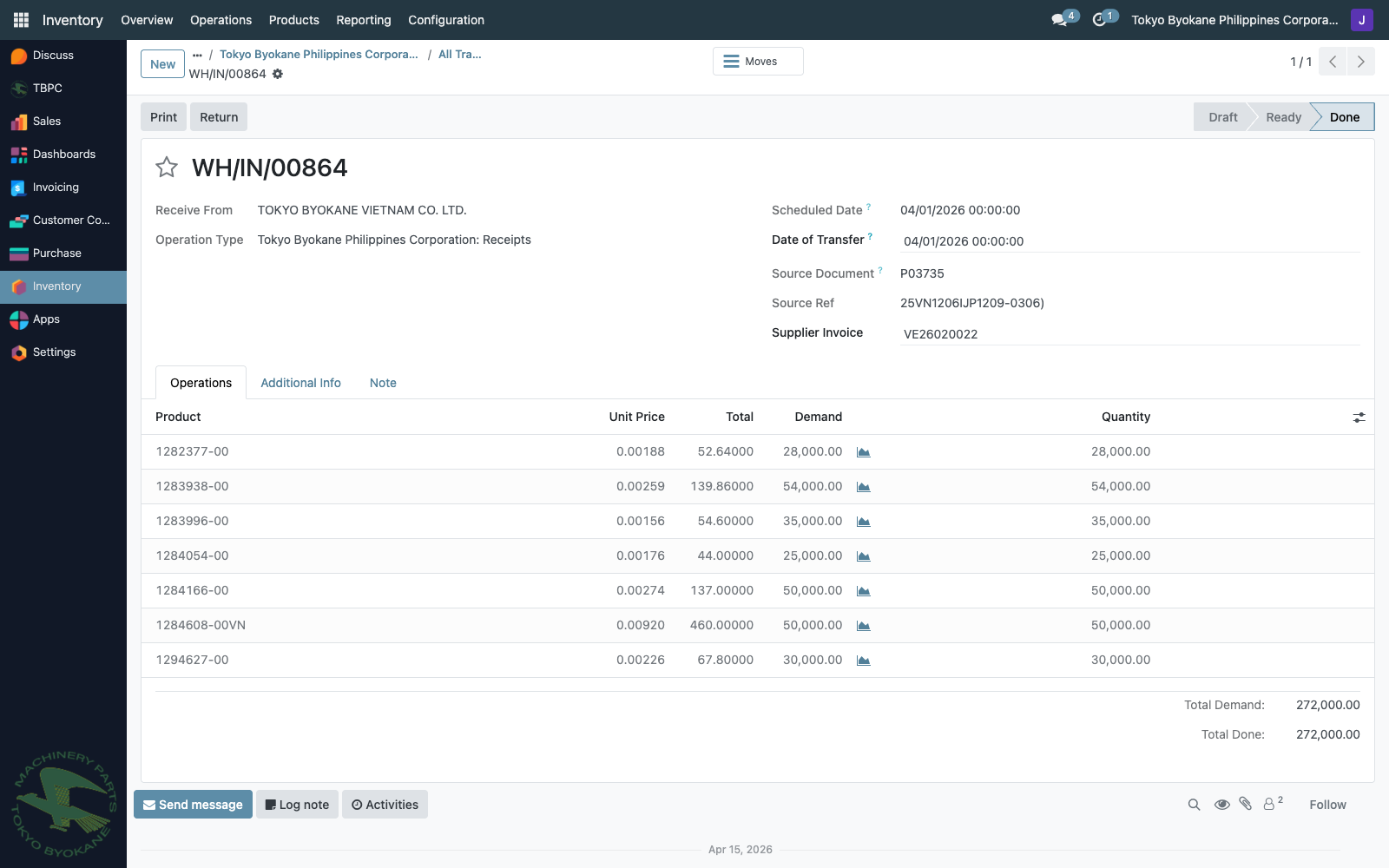
Step 2: Click "Return"
Click the Return button at the top of the form. The Reverse Transfer wizard opens.
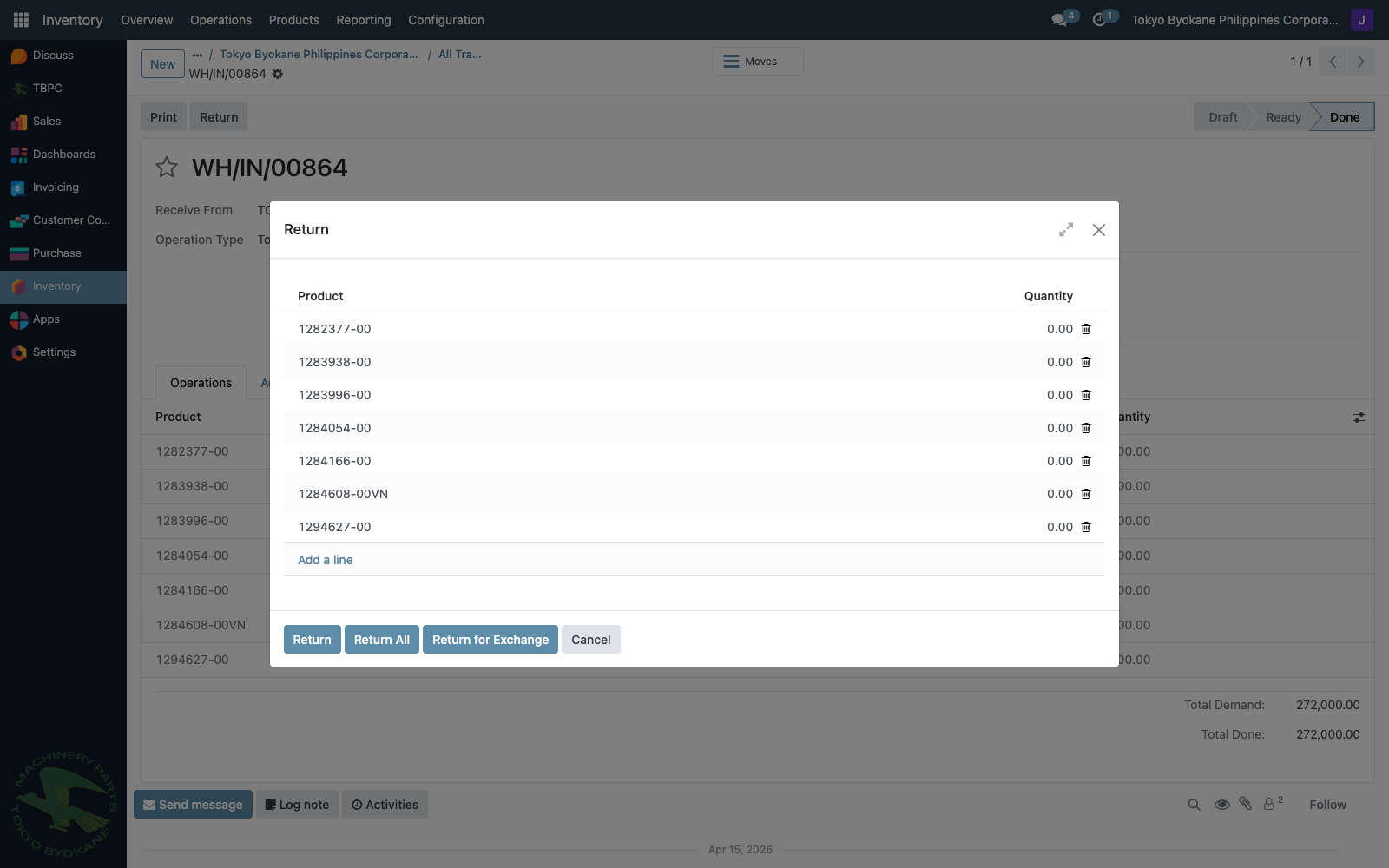
Step 3: Set the return quantity
In the wizard, change the Quantity of each line to the amount that did not physically arrive — in our scenario, 30,000.
Step 4: Validate the return
Click Return. Odoo creates a new outgoing transfer in Ready status, draws the 30,000 phantom units back out of stock, and offers to create a backorder linked to the original PO.
When prompted, click Create Backorder. The backorder is a fresh receipt for the 30,000 still owed by the vendor.
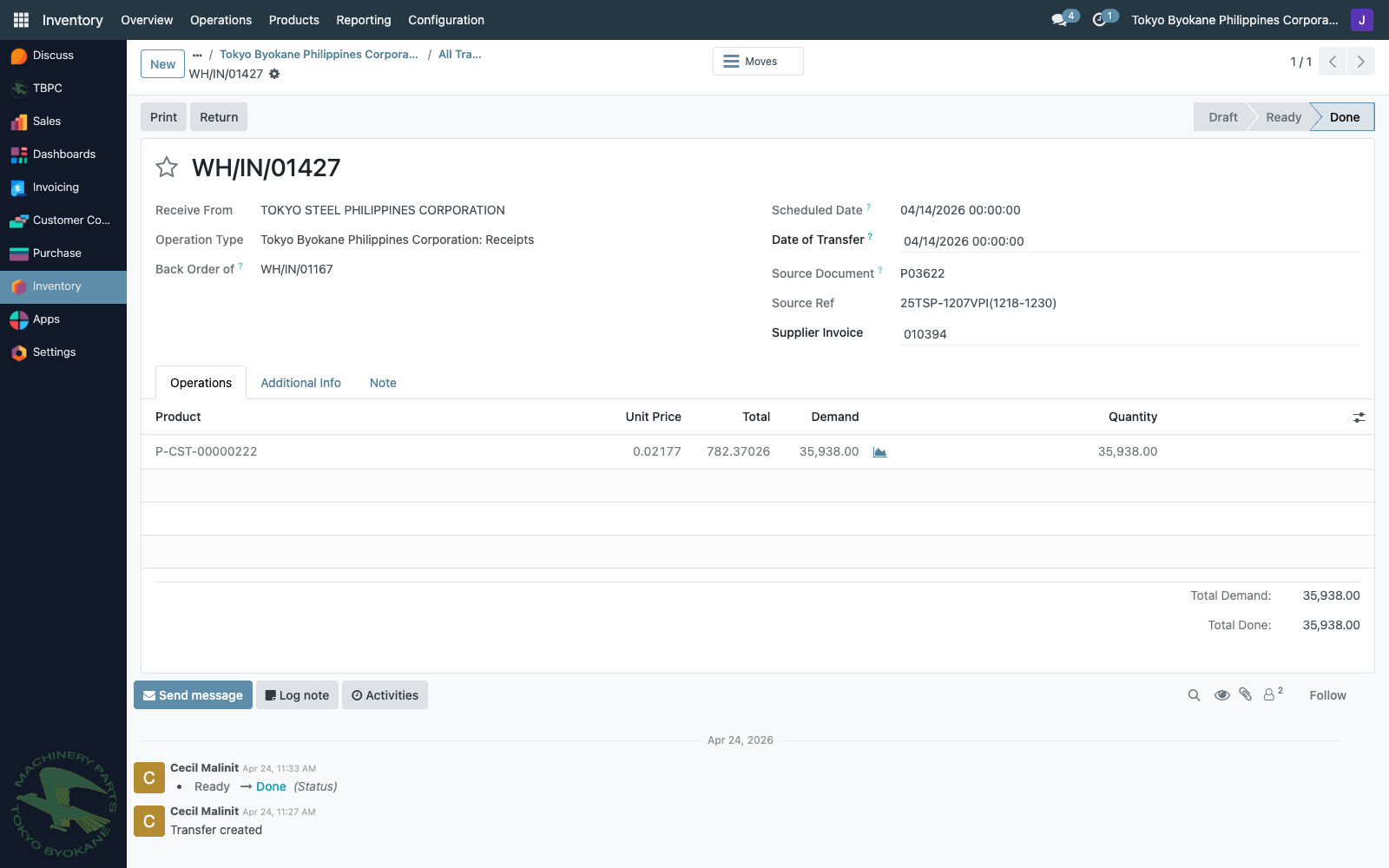
Step 5: Receive the missing 30,000 when it arrives
When the vendor delivers the remaining 30,000 units, open the backorder receipt and validate it normally. The PO is then truly fully received.
Accounting effect (Path A)
- Stock on-hand returns to the correct 30,000 units.
- The vendor bill (if already posted) does not need to be changed yet — the bill still matches the total PO.
- When the remaining 30,000 arrives later, no further bill action is needed.
Path B — Return without Backorder
Use this when the missing 30,000 will never be delivered.
Step 1: Open the validated receipt and click "Return"
Same as Path A, Steps 1–2.
Step 2: Set the return quantity
In the Reverse Transfer wizard, set the Quantity to 30,000 (the amount that did not arrive).
Step 3: Validate the return
Click Return, then when prompted decline the backorder (close the wizard or click No Backorder, depending on your Odoo screen).
Step 4: Cancel or close the remainder on the PO
Open the related Purchase Order. The PO will show 30,000 still pending. From the PO, you have two options:
- If the PO should be considered fully closed at 30,000: click the More menu (⚙️) on the PO and select Cancel remaining quantities (or set the order line quantity to 30,000 to match what was received). Confirm.
- If the PO will be re-issued / re-ordered: leave it as-is and create a fresh PO for the missing 30,000 with the vendor's correct delivery details.
Step 5: Issue a vendor credit note (Debit Memo)
Required if a vendor bill was already posted for the full 60,000.
If the bill for 60,000 has already been posted to Accounts Payable, you must reduce it by the 30,000 short-shipped amount. Otherwise AP is overstated.
- Navigate to Accounting > Vendors > Bills and open the posted bill.
- Click Credit Note at the top of the bill.
- In the wizard, choose "Partial refund" and enter the credit amount equal to 30,000 units × unit price.
- Add a clear Reason (e.g. "Short shipment correction — 30,000 units not delivered against PO ####").
- Click Create → review the draft → click Confirm.
- Reconcile the credit note against the original bill so the vendor's open balance reflects only the 30,000 actually received.
Screenshot of a posted vendor credit note will be added once a real example exists in the test database.
Accounting effect (Path B)
| Entry | Debit | Credit |
|---|---|---|
| Stock Valuation (reversed) | 30,000 × cost | |
| Stock Interim — Received | 30,000 × cost |
After the credit note is reconciled:
| Entry | Debit | Credit |
|---|---|---|
| Accounts Payable | 30,000 × price | |
| Expense / GR-IR Clearing | 30,000 × price |
Net result: stock is corrected, AP is corrected, audit trail is preserved.
Summary
| Question | Answer |
|---|---|
| Should I delete the validated receipt? | No. Use Return to create a corrective movement. |
| Will the missing units arrive later? | Use Path A (with backorder). |
| Are the missing units lost or cancelled? | Use Path B (no backorder + credit note). |
| Was the vendor bill already posted for the full amount? | You must issue a vendor credit note to correct AP. |
| Can I just adjust on-hand from Inventory? | Not recommended — it skips the PO and bill, leaving them out of sync. |
Quick Reference — Click Path
Inventory
  └── Operations > Transfers
       └── Open the over-validated receipt (Done)
            └── Click [Return]
                 └── Set wrong-quantity on each line  ← e.g. 30,000
                      ├── Path A: Validate → Create Backorder
                      └── Path B: Validate → No Backorder
                                   └── Accounting > Vendors > Bills
                                        └── Open bill → [Credit Note]
                                             └── Partial refund (30,000 × price) → Confirm → Reconcile
Related Guides
- Debit Notes and Credit Notes — for customer-side adjustments (this guide covers vendor-side).