Account Reconciliation
The Reconcile program in ARE18 provides a centralized interface for matching open journal items across accounts. It is based on the Account Reconcile OCA module, enhanced with a custom Smart Filter developed specifically for TBPC to speed up matching.
What Is Reconciliation?
In accounting, reconciliation is the process of linking journal items that offset each other so that balances are properly cleared. Common examples:
- Matching a vendor bill (credit on Accounts Payable) with a payment (debit on Accounts Payable) → clears the A/P balance
- Matching a customer invoice (debit on Accounts Receivable) with a customer payment (credit on A/R) → clears the A/R balance
- Matching a withholding tax accrual with its subsequent tax payment
- Matching an advance payment with a later bill or invoice
When two or more items balance to zero, Odoo links them via a reconciliation record, and the corresponding invoice/bill/payment is marked Paid.
Navigation
Accounting menu > Accounting > Reconcile
This opens the account-level reconciliation dashboard:
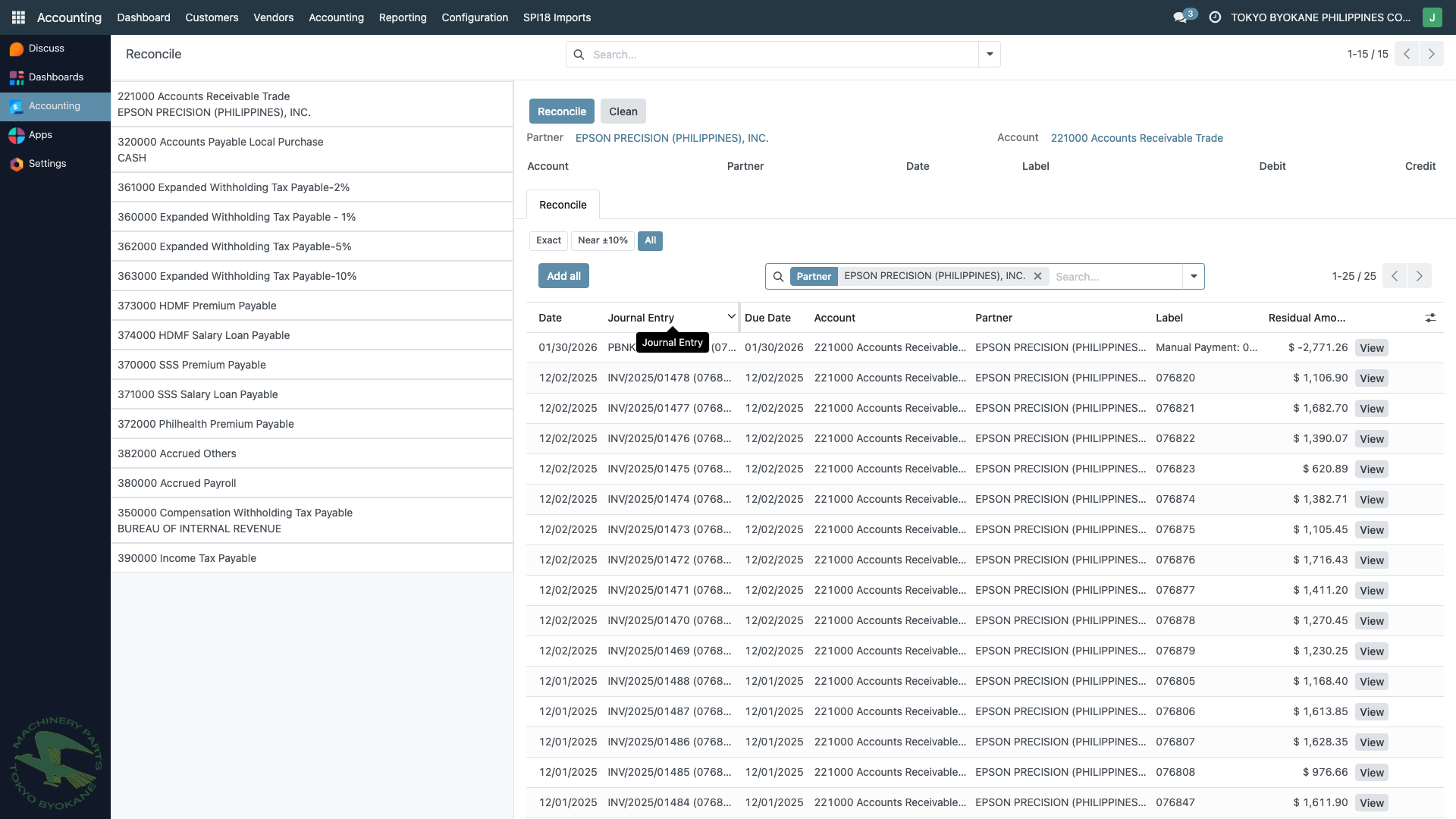
The Reconcile Dashboard
The left sidebar lists all accounts with unreconciled items, grouped by partner. Each line shows:
- Account code and name (e.g.,
221000 Accounts Receivable Trade) - Partner name (e.g.,
EPSON PRECISION (PHILIPPINES), INC.)
Accounts with many open items are candidates for cleanup. Common accounts you'll see here:
| Account | Why Items Accumulate |
|---|---|
| Accounts Receivable Trade | Invoices not yet reconciled with payments |
| Accounts Payable Local Purchase | Bills not yet reconciled with payments |
| Expanded Withholding Tax | Accruals waiting for BIR payment |
| HDMF / SSS / PhilHealth Premium Payable | Monthly accruals waiting for remittance |
| VAT Payable / VAT Output | Monthly accruals waiting for BIR payment |
| Accrued Others | Various accruals awaiting actual payment |
Click any item in the sidebar to open its reconciliation view.
The Reconciliation View
When you click an account/partner pair, Odoo opens the matching interface on the right side:
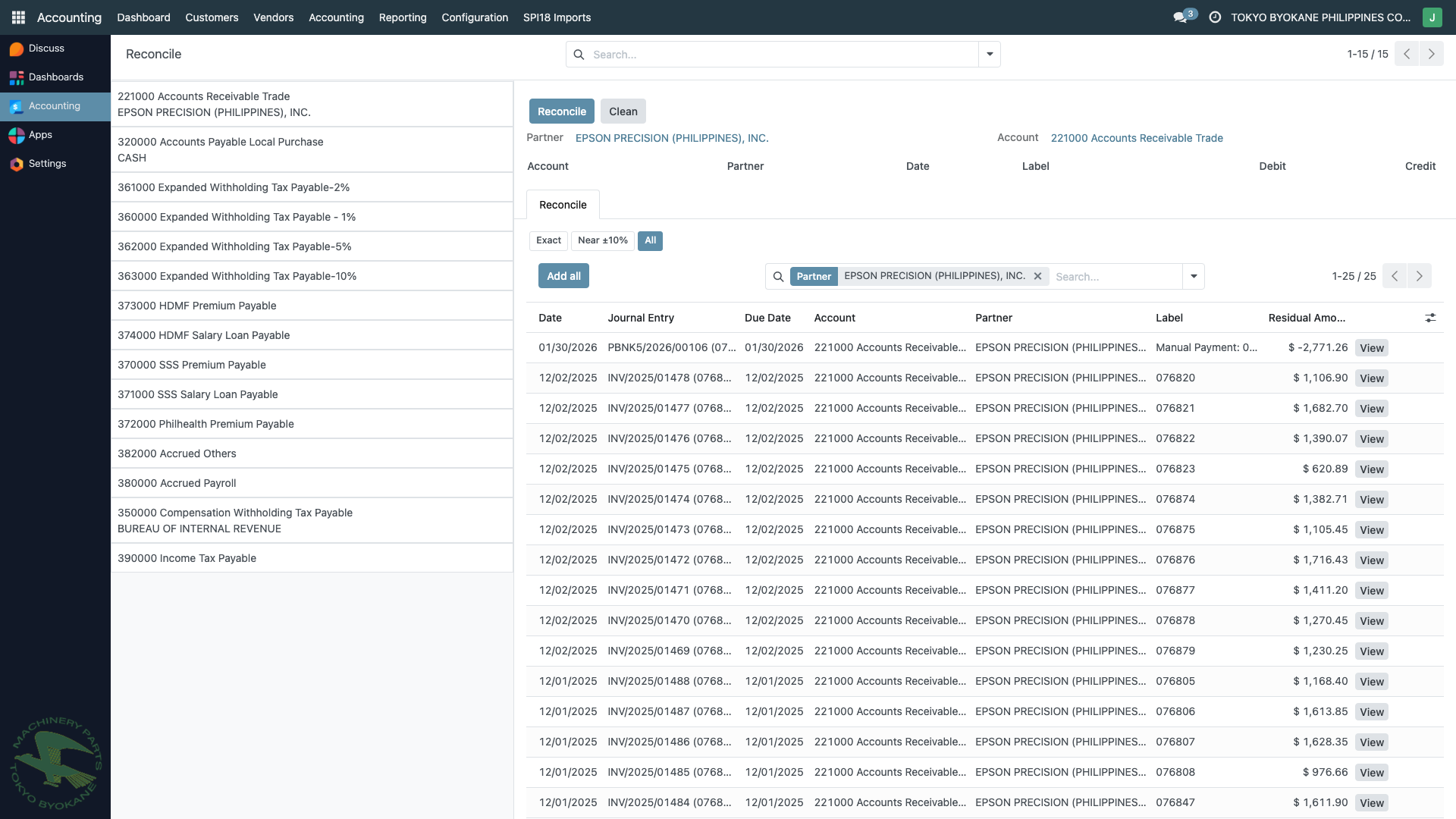
Top Panel — Staging Area
The top panel is the staging area for items you're about to reconcile. Select items from the list below, and they appear here with their debit/credit amounts. When the selected items balance to zero, you can click Reconcile to finalize the match.
Middle Panel — Smart Filter
This is a custom ARE18 feature that adds three filter modes:
| Filter | Behavior |
|---|---|
| Exact | Show only items whose residual amount exactly matches the target |
| Near ±10% | Show items whose residual is within 10% of the target |
| All | Show all open items for the partner (default) |
The Smart Filter dramatically reduces the time needed to find the matching counterpart for a payment or bill. See Reconcile Smart Filter for details.
Bottom Panel — Candidate List
The list shows all open journal items for the selected account and partner, filtered by the Smart Filter mode. Each row displays:
- Date — transaction date
- Journal Entry — move name (e.g.,
RNV2025/01471) - Due Date — when the item is due
- Account — account the item posts to
- Partner — customer or vendor
- Label — description
- Residual Amount — open amount waiting to be matched
Click View to drill down into the source document (invoice, bill, or payment).
How to Reconcile
Scenario: Match a payment with its invoice
- Navigate to Accounting menu > Reconcile
- In the sidebar, click the account/partner you want to work on
- In the bottom list, click the items you want to match:
- The invoice (debit side)
- The payment (credit side)
- Watch the staging area at the top — when the total balances to zero, the Reconcile button becomes active
- (Optional) Use Smart Filter > Exact to quickly narrow down candidates
- Click Reconcile to finalize the match
Odoo creates a reconciliation record and:
- Marks the invoice as Paid
- Marks the payment as reconciled
- Removes both items from the Reconcile dashboard
Scenario: Partial reconciliation
If amounts don't match exactly (e.g., $1,000 invoice, $950 payment), you can still reconcile. Odoo will:
- Reconcile $950 between the two
- Leave a $50 residual open on the invoice
- Keep the invoice in the Reconcile dashboard until the remainder is matched
Reconciliation vs Bank Reconciliation
These are related but different:
| Type | What It Matches | Where |
|---|---|---|
| Account Reconciliation (this page) | Journal items within the same account (e.g., invoices vs. payments on A/R) | Accounting menu > Reconcile |
| Bank Reconciliation | Bank statement lines with internal payments | Accounting dashboard > Bank journal card > Reconcile |
Bank reconciliation uses the same OCA Account Reconcile infrastructure but is driven by imported bank statement lines instead of account views.
Best Practices
- Reconcile regularly — weekly is ideal, monthly at minimum. The longer items sit unreconciled, the harder it becomes to match them.
- Clear accruals after payment — remittances for BIR, SSS, PhilHealth, HDMF should be reconciled monthly to keep the Payable balances clean.
- Use Smart Filter liberally — the Exact filter saves significant time on high-volume accounts.
- Don't leave partial matches hanging — if you can't fully reconcile, at least note the reason in the source document's chatter.
- Check partner filtering — always verify you're reconciling within the same partner, not across partners.
- Respect lock dates — reconciliation of items in locked periods may be blocked.
Related Pages
- Reconcile Smart Filter — the custom Exact / Near / All filter
- Manual Reconciliation of Invoices — customer-side manual workflows
- Manual Reconciliation of Bills — vendor-side manual workflows
- Lock Dates — how period locks affect reconciliation