Reconcile Smart Filter
The Reconcile Smart Filter is a custom ARE18 enhancement to the OCA Account Reconcile interface. It adds three quick-filter buttons — Exact, Near ±10%, and All — that dramatically speed up the process of finding matching counterparts for high-volume accounts.
Why It Exists
The base OCA Account Reconcile view lists all open journal items for the selected partner. On accounts with hundreds of open items (e.g., monthly Expanded Withholding Tax accruals, high-volume customer A/R), this becomes slow and error-prone. You have to scroll and search manually to find items that match the amount you're trying to reconcile.
The Smart Filter fixes this by pre-filtering the candidate list based on residual amounts.
Filter Modes
Three mode buttons appear above the candidate list:
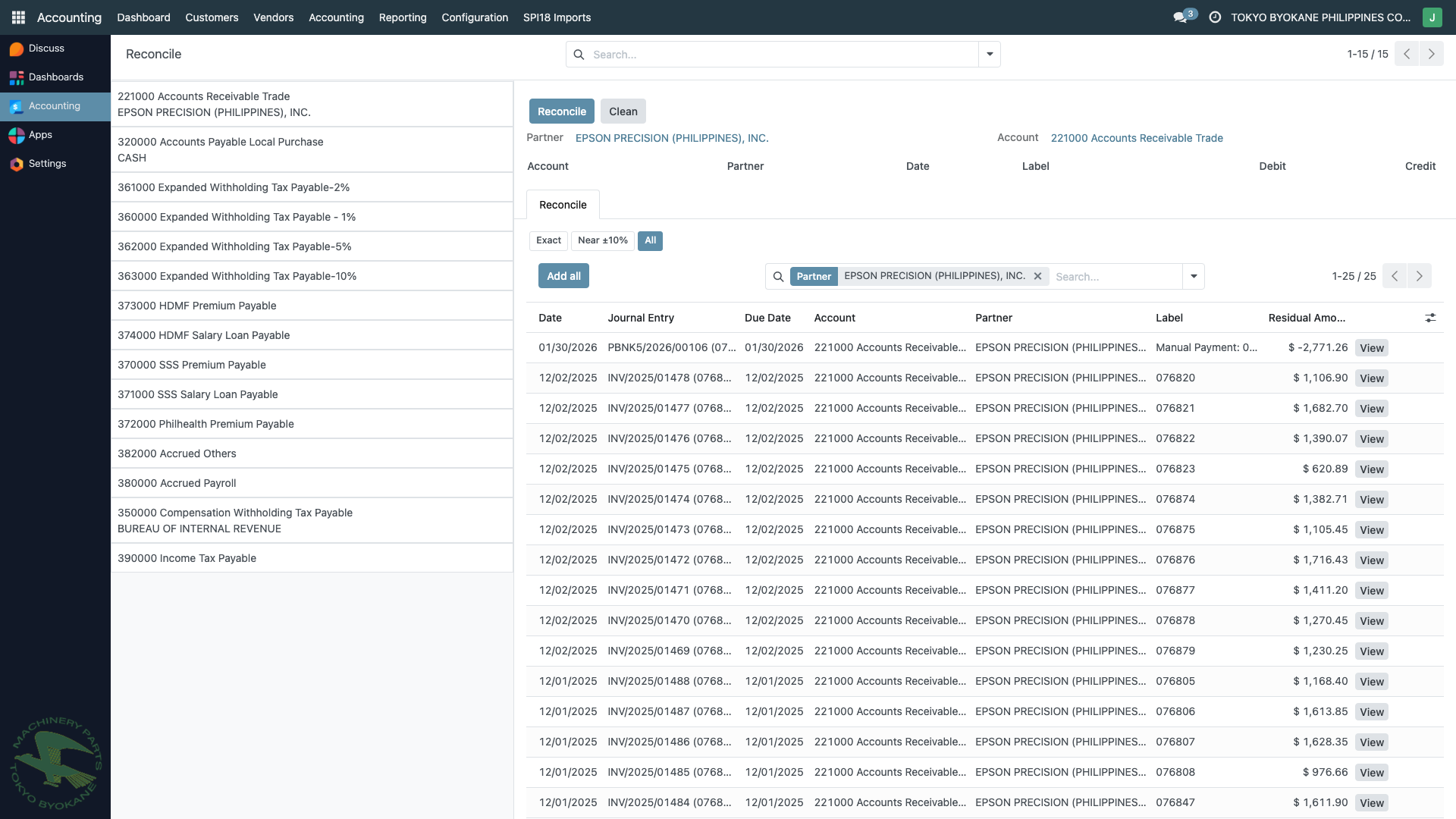
Exact
Shows only items whose residual amount exactly matches the target amount (inverted for opposite signs).
Example:
If you're reconciling a customer payment of -$7,595.48 (credit), the Exact filter shows only open invoices (debits) with a residual of $7,595.48.
Use case: When you know the payment was for a specific invoice with no adjustments. Fastest possible match.
Near ±10%
Shows items whose residual is within 10% of the target, either above or below.
Example: If the target residual is $7,595.48, the Near filter shows items between $6,835.93 and $8,354.03.
Use case: When the customer sent a payment that doesn't exactly match any single invoice — perhaps due to:
- Bank fees deducted in transit
- Partial withholding tax
- Small rounding differences on multi-currency conversions
- Manual adjustments
All
Shows all open items for the partner (default behavior, same as the base OCA module).
Use case: When you need to:
- Match a single payment to multiple invoices (batch payment)
- See the full list to pick partial matches
- Look for items where you're not sure of the amount
How It Works (Technical Detail)
The Smart Filter is a browser-side patch that modifies the candidate list's domain filter before the request is sent to the server.
- The widget reads the target amount (the payment or adjustment being reconciled)
- Based on the selected mode (
exact,near, orall), it adds a residual-amount constraint to the search domain:- Exact:
residual_amount = target - Near:
residual_amount BETWEEN (target × 0.9, target × 1.1) - All: no additional constraint
- Exact:
- The candidate list re-renders with only the matching items
- The selected mode persists while you're in the same reconciliation view
The target amount is computed by inverting the sign of the staged amount: a credit of -$7,595.48 looks for debits of +$7,595.48, and vice versa. This ensures the filter matches the opposing side that will balance the reconciliation.
Typical Workflow
Clearing monthly BIR accruals
Scenario: At month-end, you paid the Expanded Withholding Tax (EWT) accrued during the month via BIR Form 1601-EQ. The payment entry needs to clear the accrued amounts on the EWT Payable accounts.
- Navigate to Accounting > Reconcile
- Click 362000 Expanded Withholding Tax - 2% in the sidebar
- Select the monthly payment entry in the staging area
- Click Smart Filter > Exact
- Instantly see the accruals that match — select all of them
- Click Reconcile
Without the Smart Filter, you'd have to scroll through hundreds of accruals manually to find the ones matching your payment.
Matching a customer check to an invoice
Scenario: Customer sent a check for $1,234.56 for an open invoice.
- Navigate to Accounting > Reconcile
- Click 221000 Accounts Receivable Trade / [Customer name]
- Select the payment in the staging area
- Click Smart Filter > Exact
- See only invoices with exactly $1,234.56 residual
- Click the matching invoice and reconcile
Partial withholding or bank fees
Scenario: An invoice was for $1,000 but the customer's payment arrived as $980 (due to $20 in bank fees).
- Select the $980 payment in the staging area
- Click Smart Filter > Near ±10%
- See invoices between $882 and $1,078 — the $1,000 invoice appears
- Select the $1,000 invoice
- The staging area shows an $20 residual — this can be written off via a Credit Note or a manual journal entry, then reconciled
Benefits
- Speed — typical reconciliation session is 3-5× faster for high-volume accounts
- Accuracy — less scrolling means less chance of selecting the wrong item
- Focus — instantly see whether an exact match exists; if not, widen to Near
- Persistence — the mode stays selected across clicks until you change it
When Not to Use Smart Filter
Keep Smart Filter on All when:
- Batch payments — one check pays multiple invoices; you need to see all of them
- Investigating — you're exploring why a balance won't clear
- Initial cleanup — reviewing old accounts with many small items
Technical Notes (for Administrators)
The Smart Filter is implemented as a browser-side JavaScript patch:
- Location:
are18/static/src/reconcile_smart_filter/ - Files:
reconcile_smart_filter.js— the widget patch logicreconcile_smart_filter.xml— the QWeb template with the filter buttonsreconcile_smart_filter.scss— styling
- Registered in:
are18/__manifest__.pyunder'web.assets_backend' - Patches:
AccountReconcileMatchWidgetfrom theaccount_reconcile_ocamodule
It does not modify any server-side code, database schema, or reconciliation logic — it only changes how the candidate list is filtered before display.
Related Pages
- Account Reconciliation Overview — the base reconciliation workflow
- Manual Reconciliation of Bills — vendor-side reconciliation
- Manual Reconciliation of Invoices — customer-side reconciliation