Advance Payments to Vendors
An advance payment is a disbursement made to a vendor before the actual bill is received. This is common for:
- Contractor deposits or down payments
- Prepayments for goods that will be delivered later
- Retainer fees for professional services
- Supplier advances to secure stock
This page covers how to record advance payments and then reconcile them with bills when they eventually arrive.
The Scenario
- Today: TBPC pays a vendor ₱50,000 as an advance (no bill yet)
- Later: The vendor delivers goods/services and sends an invoice for ₱50,000
- Bill arrives: You need to record the bill and apply the advance to it
Step 1: Record the Advance Payment
Since there's no bill yet, you create a standalone vendor payment:
- Navigate to Vendors > Payments
- Click New
- Fill in:
- Payment Type: Send Money
- Vendor: Select the vendor
- Amount: The advance amount (e.g., ₱50,000)
- Date: Payment date
- Journal: Bank or cash journal
- Payment Method: Manual Payment (check), Bank Transfer, etc.
- Memo: "Advance payment - [reason]"
- Click Confirm to post the payment
The journal entries created:
- Debit: Accounts Payable (vendor) — creates a negative balance / credit balance for the vendor
- Credit: Bank/Cash
At this point, the vendor has a credit balance on their Accounts Payable — TBPC owes negative money (i.e., the vendor owes TBPC delivery).
:::info Outstanding Debit Technically in accounting terms, when you pay a vendor in advance, you create an outstanding debit on the Accounts Payable account. This is why Odoo shows the message "You have outstanding debits for this vendor" on new bills. :::
Step 2: Print Disbursement Voucher
Print the Disbursement Voucher for the advance payment the same way as any other payment:
- Open the posted payment
- Click Disbursement Voucher
- Print via browser dialog
The voucher serves as the internal approval document for the advance.
Step 3: Record the Bill When It Arrives
When the vendor eventually sends the invoice:
- Navigate to Vendors > Bills and click New
- Enter the bill details as usual (see Recording a Bill)
- Fill in vendor, lines, amounts, taxes
- Click Confirm to post
When you open the posted bill, you'll see:
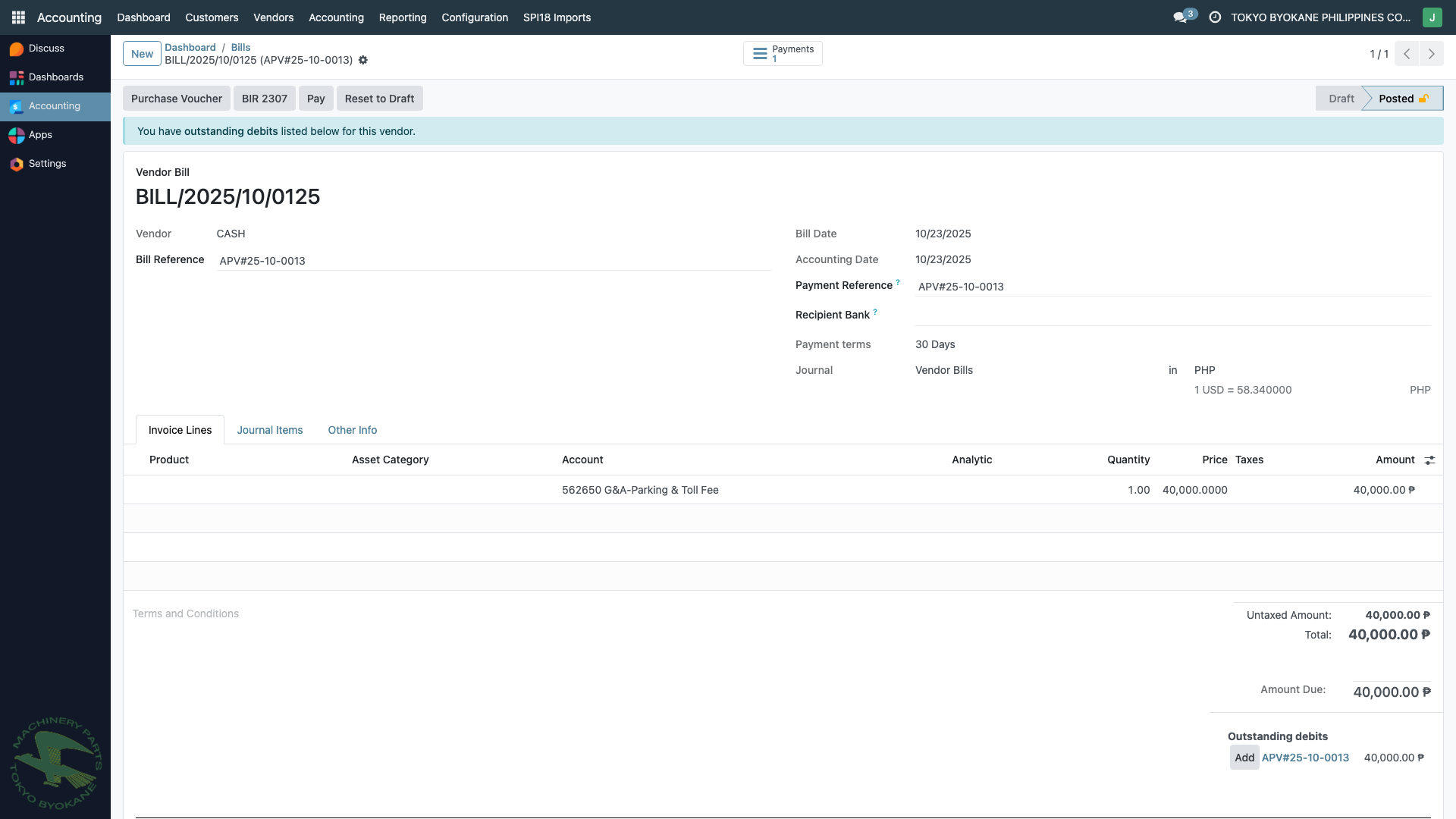
Notice the blue notification banner: "You have outstanding debits for this vendor". This is Odoo detecting that there's an advance payment available to apply.
Step 4: Apply the Advance to the Bill
Click Add next to the outstanding debit in the notification. This:
- Reconciles the bill with the advance payment
- Marks the bill as Paid (or Partially Paid if amounts differ)
- Clears the vendor's Accounts Payable balance (or reduces it)
Three Possible Outcomes
| Bill Amount | Advance Amount | Result |
|---|---|---|
| Equal (e.g., ₱50,000 bill, ₱50,000 advance) | Bill is fully Paid, advance is consumed | |
| Bill > Advance (e.g., ₱60,000 bill, ₱50,000 advance) | Bill is Partially Paid, remaining ₱10,000 is owed | |
| Bill < Advance (e.g., ₱40,000 bill, ₱50,000 advance) | Bill is Paid, remaining ₱10,000 advance stays as credit for next bill |
Step 5: Handle Any Residual
If Bill > Advance (underpayment of advance)
You still owe the vendor the difference. Register a second payment for the residual amount using the standard Pay button on the bill.
If Bill < Advance (overpayment of advance)
The remaining advance stays on the vendor's account as a credit. You can either:
- Apply to a future bill — the same "outstanding debits" banner will appear on the next bill
- Request a refund — ask the vendor to return the excess; record this as a reversal
Full Example Walkthrough
Scenario: TBPC prepays Vendor ABC ₱100,000 as a contractor deposit. Later, Vendor ABC delivers work worth ₱120,000.
Timeline
| Date | Action | Accounting Impact |
|---|---|---|
| Jan 15 | Record ₱100,000 advance payment | DR Accounts Payable ₱100k / CR Bank ₱100k |
| Jan 15 | Print Disbursement Voucher | For internal approval |
| Mar 01 | Vendor sends invoice for ₱120,000 | (no entry yet) |
| Mar 02 | Record bill for ₱120,000 | DR Expense ₱120k / CR Accounts Payable ₱120k |
| Mar 02 | Apply advance (₱100k) to bill | Bill shows Partially Paid |
| Mar 15 | Register payment for balance ₱20,000 | DR Accounts Payable ₱20k / CR Bank ₱20k |
| Mar 15 | Bill now fully Paid |
Net Accounts Payable Balance
After all transactions, Accounts Payable for Vendor ABC returns to zero — meaning all obligations are settled.
Summary
Advance payments are handled through the normal payment and reconciliation flow:
- Create a standalone payment when you disburse the advance (no bill needed)
- Record the bill when it arrives
- Apply the advance via the "outstanding debits" notification on the bill
- Handle residuals with additional payments or by carrying forward the credit
:::tip Best Practices
- Always add a clear memo on advance payments (e.g., "Advance for Project X") to make reconciliation easier later
- Print the Disbursement Voucher immediately for audit trail
- Review the Aged Payables report periodically to see unmatched advances
- Use the Subsidiary Ledger to track each vendor's running balance :::