Manual Reconciliation of Bills and Payments
Most of the time, payments are automatically reconciled when you use the Pay button on a bill. However, there are scenarios where you need to manually reconcile a bill with an existing payment:
- A payment was created independently (not from the bill)
- You received an advance payment receipt before the bill arrived
- A payment was applied to the wrong bill and needs to be moved
- Partial payments need to be matched with specific bills
When to Use Manual Reconciliation
| Scenario | Action |
|---|---|
| Paying a new bill with immediate payment | Use Pay button (auto-reconciles) |
| Paying multiple bills with one payment | Manual reconciliation |
| Linking an advance payment to a later bill | Manual reconciliation |
| Fixing a mis-linked payment | Reset and re-reconcile |
How Reconciliation Works
In Odoo, "reconciliation" means linking two or more journal items (lines) that offset each other. For vendor bills and payments:
- A posted bill creates a credit on Accounts Payable (vendor owes money)
- A posted payment creates a debit on Accounts Payable (money paid out)
- When you reconcile them, the bill's credit and the payment's debit cancel out — the balance becomes zero, and the bill is marked Paid
Method 1: From the Vendor's Ledger
The easiest way to manually reconcile is from the vendor's Accounts Payable ledger.
- Open any bill or payment for the vendor
- Click the Accounts Payable account link on a journal entry line
- This opens the Accounts Payable view filtered to this vendor
- You'll see all open (unreconciled) items — both bills (credits) and payments (debits)
- Select the bill and the matching payment(s)
- Click Reconcile (or it auto-reconciles once the selected items balance to zero)
Method 2: From the Bill Itself
- Open the unpaid posted bill
- Look for "You have outstanding debits for this vendor" message at the top
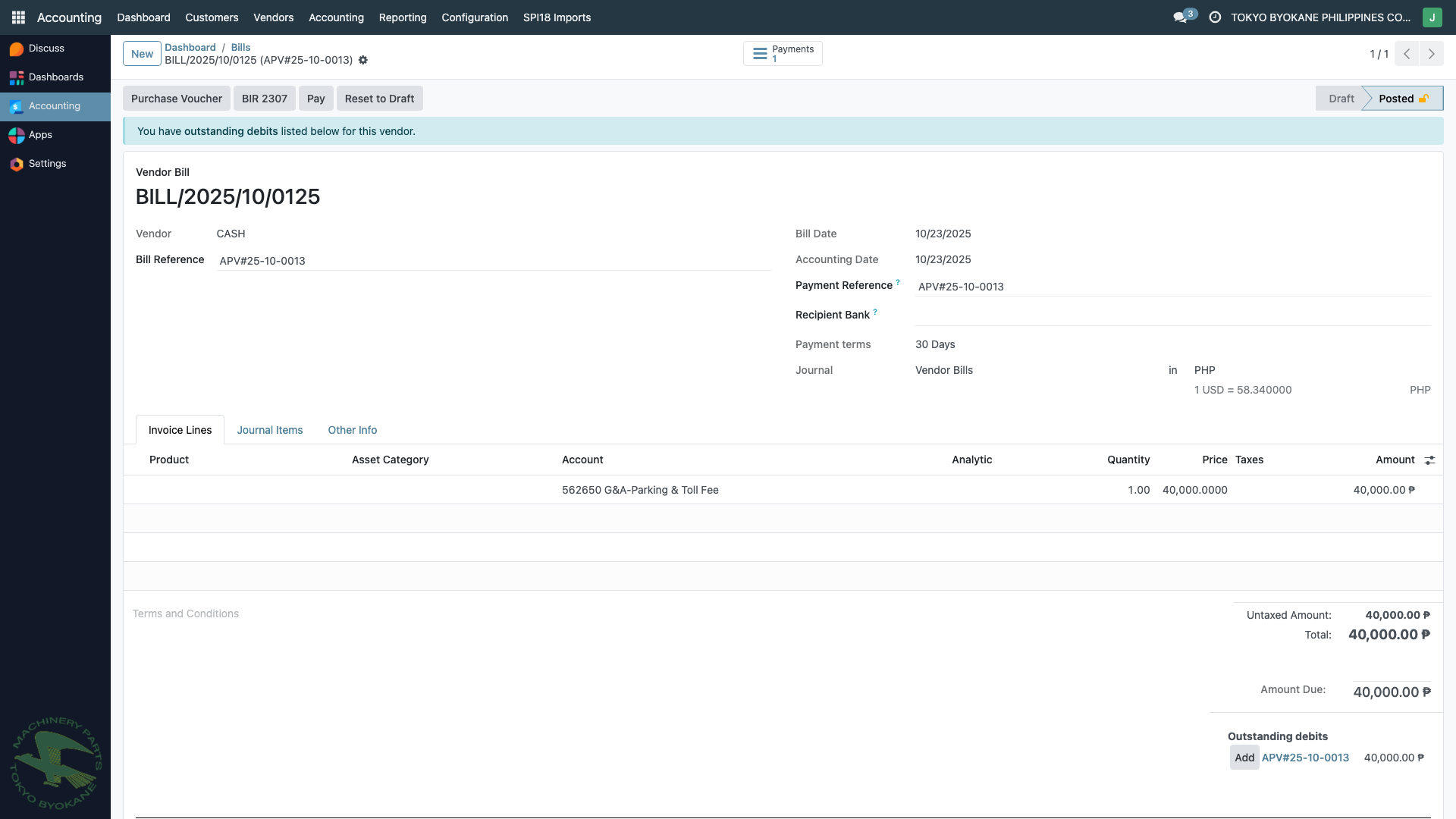
- This means there's an existing payment/credit for this vendor that's not yet matched
- Click Add next to the outstanding debit to apply it to this bill
- The bill will be marked Paid (or Partially Paid if the amounts differ)
Method 3: OCA Bank Reconciliation
For bank statement reconciliation (matching bank statement lines to bills and payments), ARE18 uses the Account Reconcile OCA module.
Navigate to: Accounting Dashboard > Bank journal > Reconcile
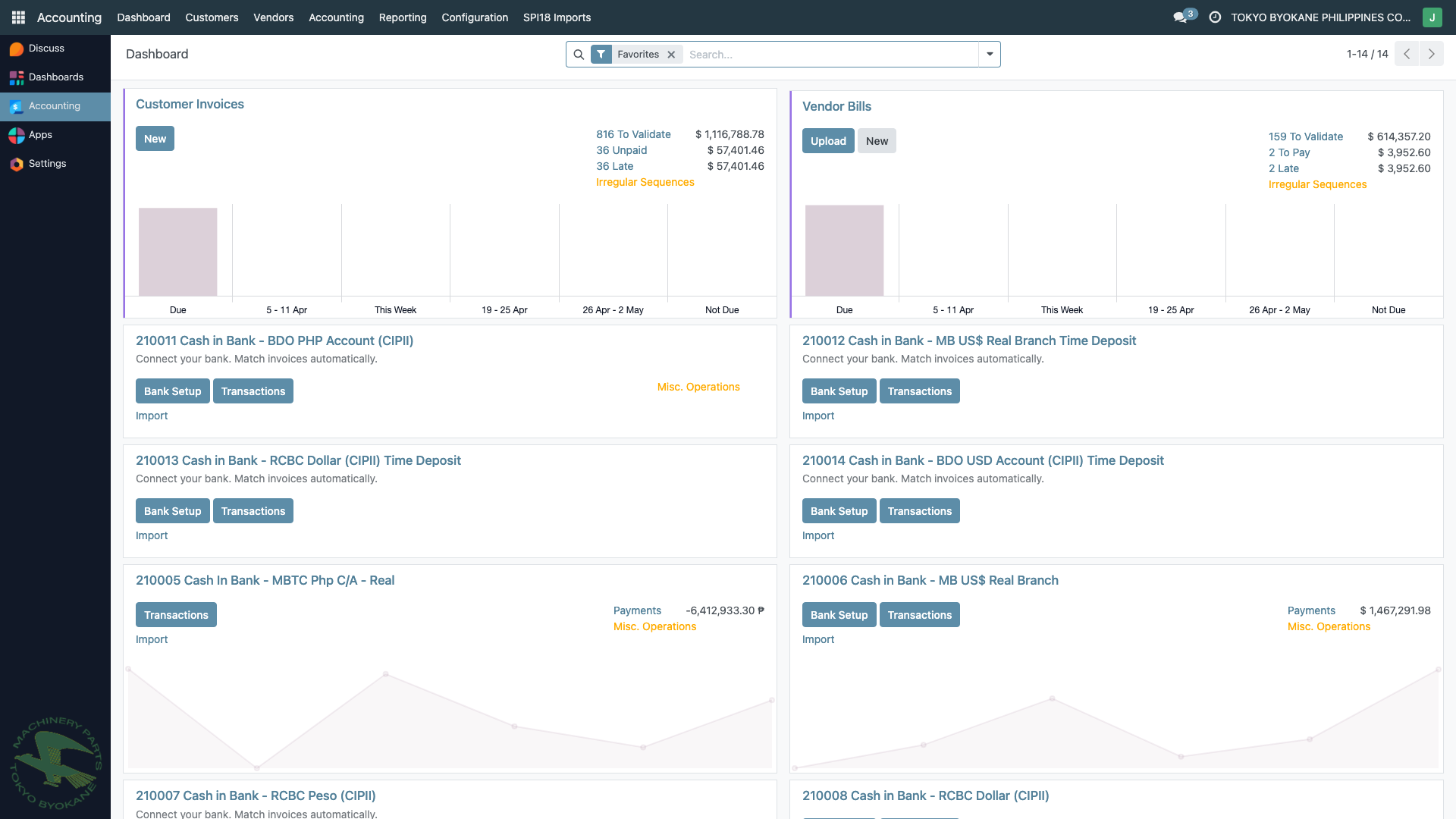
From the dashboard, each bank journal card shows:
- Number of pending transactions to reconcile
- Bank balance
- Link to reconciliation view
In the reconciliation view:
- Each bank statement line is shown
- Odoo suggests matches based on amount, partner, and reference
- Accept suggestions with a click
- Or manually search and select the bills/payments to match
- Click Validate to post the reconciliation
Unreconciling (Undo Reconciliation)
If you reconciled incorrectly:
- Open the bill or payment
- Go to the Journal Items tab
- Find the reconciled line (usually highlighted)
- Right-click or click the unlink icon to unreconcile
- The bill/payment returns to its unmatched state
:::warning Before Unreconciling Unreconciling affects the payment state of both the bill and the payment. Make sure you understand what you're undoing before proceeding. It's generally safer to create a reversing entry than to unreconcile posted entries. :::
Verifying Reconciliation
After reconciling:
- The bill shows Paid (green badge) or Partially Paid
- The payment shows Paid status
- Both are linked — clicking one shows the other
- The Aged Payables report no longer shows the bill as outstanding
:::tip Reconciliation Tips
- Always check the amounts match before reconciling (or use partial reconciliation for partial matches)
- Use the Subsidiary Ledger report to see each vendor's unreconciled items
- For complex reconciliations, consider creating a journal entry to clear residual amounts :::